BrightOnAGENTIC Guide

Welcome to BrightOnAGENTIC Documentation

Everything you need to secure autonomous agents, and unlock continuous monitoring with BrightOnAGENTIC. Follow the guided steps, recommended workflows, and integration tips below.

Before you begin

Have an authorized Microsoft work account and the target Foundry or AKS resources ready before starting onboarding.

Account Setup

Onboarding connects your BrightOnAGENTIC account to Microsoft Azure, discovers the agent deployments you authorize, and activates the appropriate plan. The exact fields shown depend on whether you use Microsoft Foundry or Azure Kubernetes Service (AKS).

Account Complete your company profile
Azure Authorize and select deployments
Activation Accept terms and choose billing

Before you begin

  • Use a Microsoft work account that can view the target Azure subscription and resource groups and approve the requested access.
  • Decide whether you are connecting Microsoft Foundry or AKS. For an n8n deployment, also have its API key available.
  • For AKS, know whether your images are in Docker Hub, Azure Container Registry (ACR), or both, and have private-registry credentials if required.
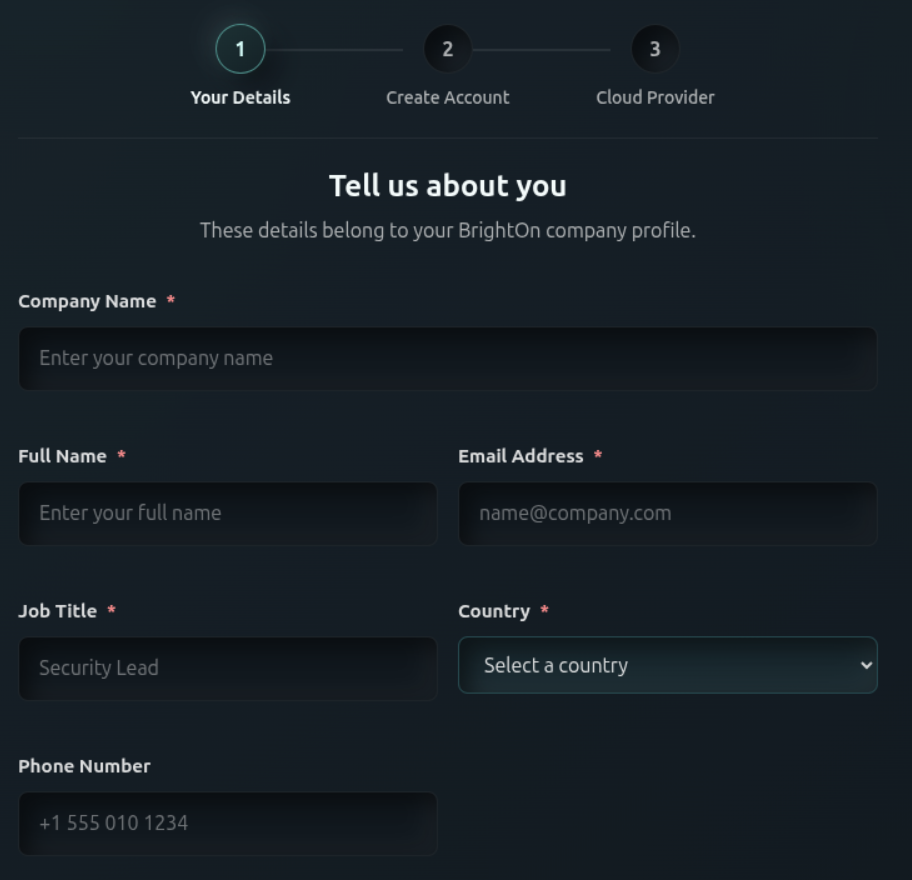
  1. Complete your company profile

    Provide the company name, your full name, business email, job title, and country. Phone number is optional. Required fields are marked with an asterisk. Review or create your account when prompted, then continue to cloud-provider selection.

    Company profile form requesting organization and user details
    Enter the details used for your BrightOn company profile.
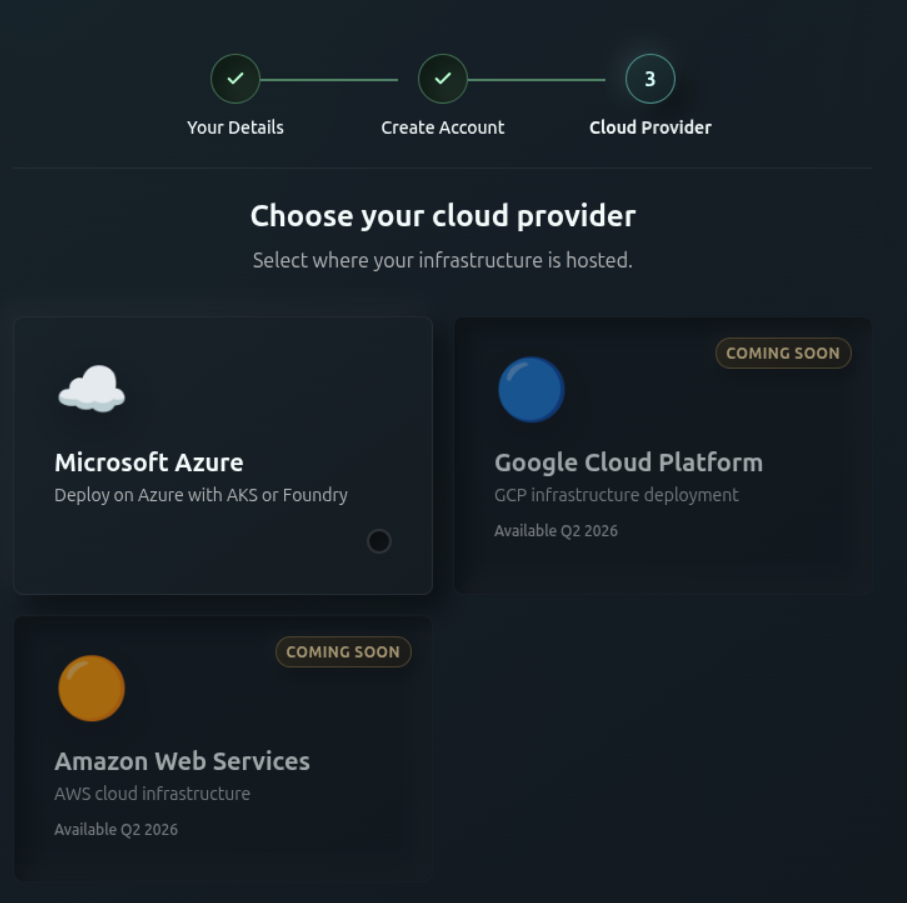
    Cloud provider selection showing Microsoft Azure available
    Select Microsoft Azure. Providers labeled “Coming soon” cannot yet be selected.
  2. Connect your Azure tenant

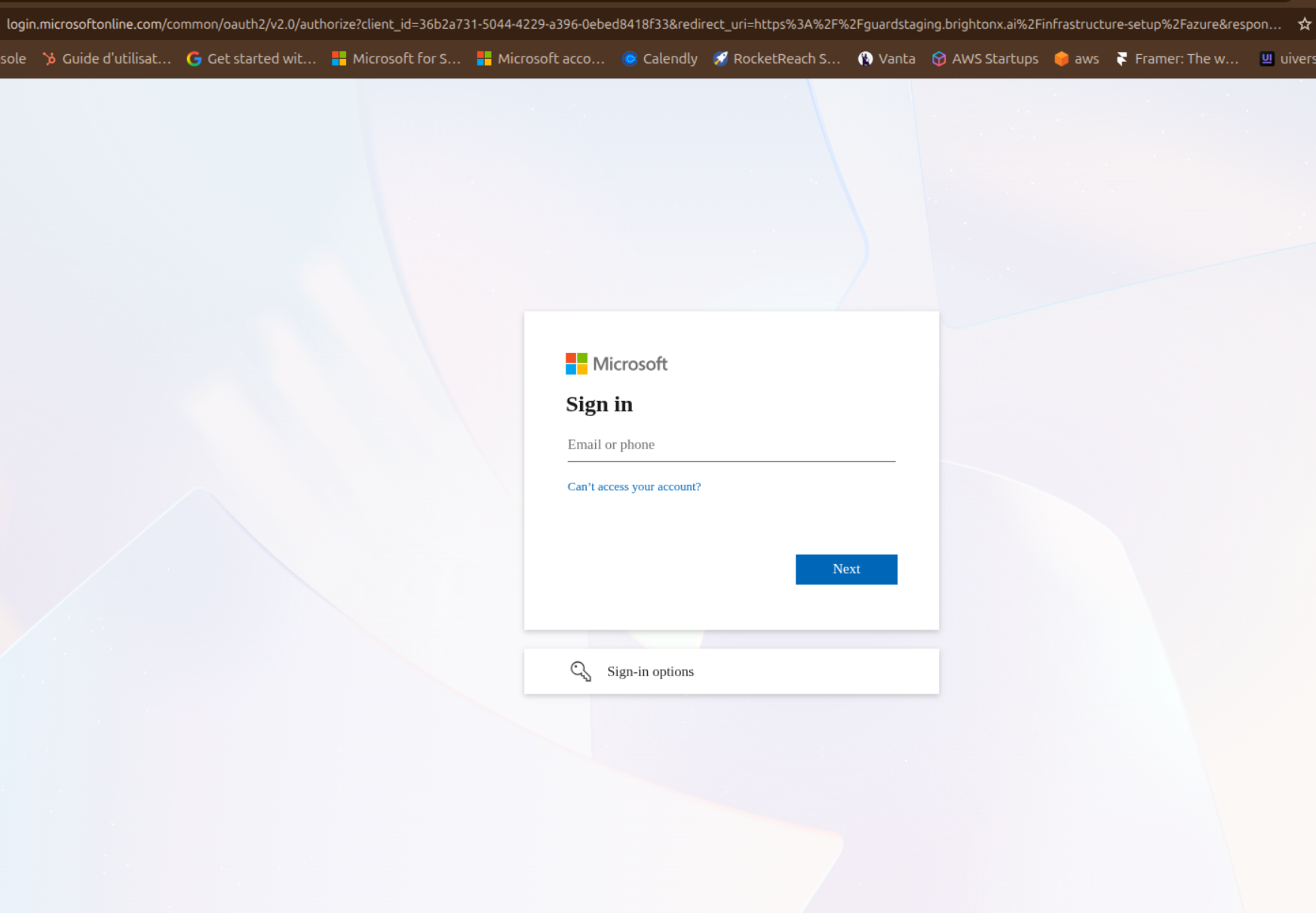
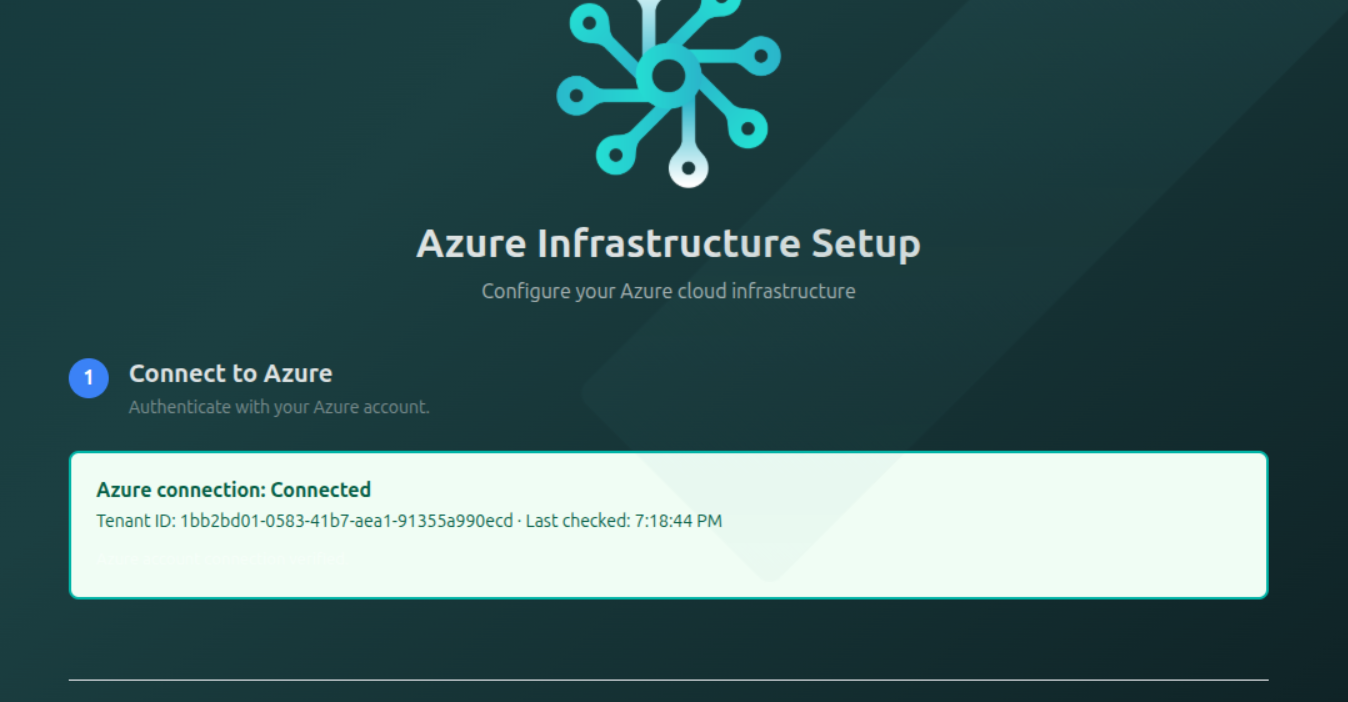
    Select Connect to Azure and sign in on the Microsoft page. Use the tenant that contains the resources you want BrightOnAGENTIC to scan. After authorization, you return to setup and see a Connected status with the tenant ID.

    Microsoft account sign-in page used to authorize Azure
    Microsoft handles your Azure authentication in a separate page.
    Azure Infrastructure Setup showing a verified connected tenant
    Confirm that the connection status is Connected before continuing.
    If the wrong tenant appears Sign out of the Microsoft page and repeat the connection with the account associated with the intended Azure tenant.
  3. Choose the infrastructure and framework

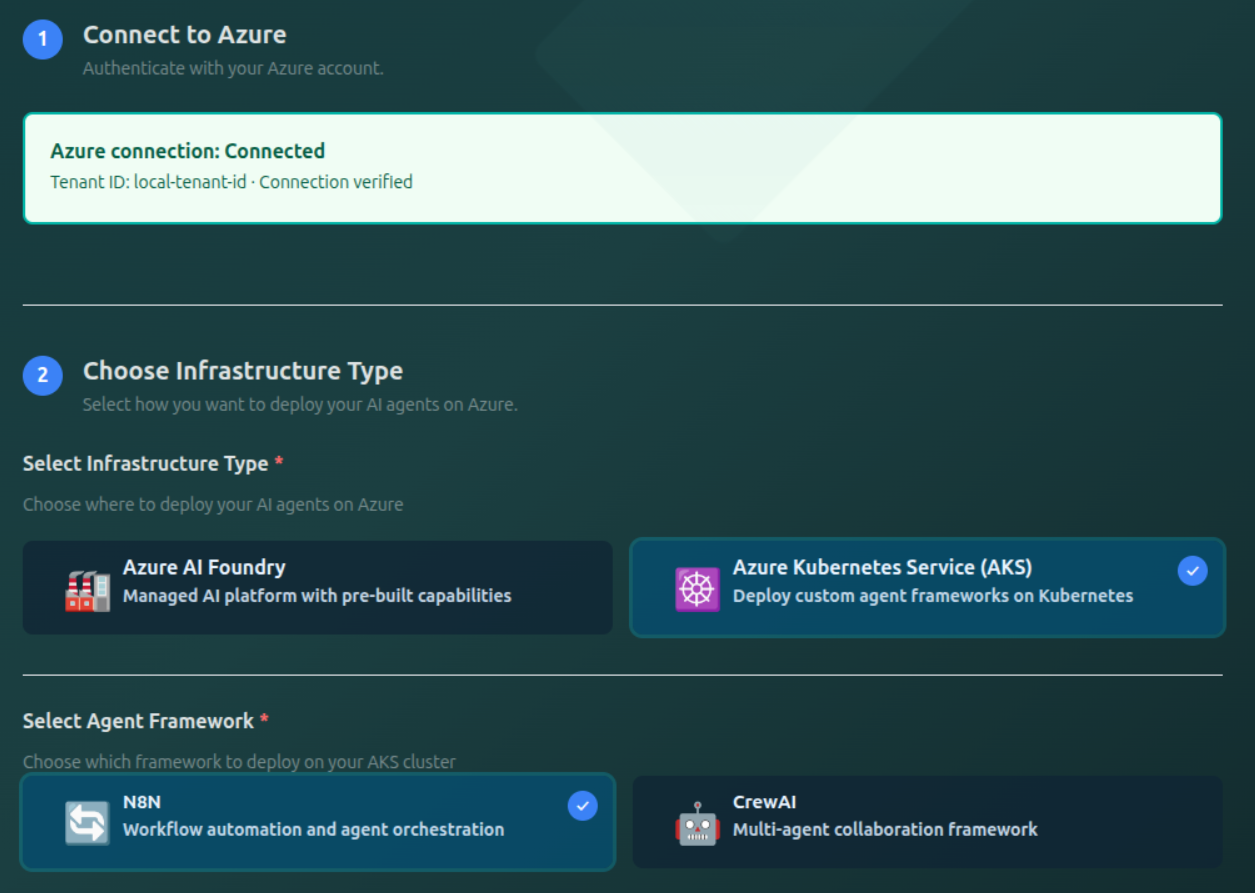
    Choose how your agents run in Azure. Select Azure AI Foundry for Foundry-managed projects, or Azure Kubernetes Service (AKS) for agents hosted in Kubernetes. When AKS is selected, also choose the deployed framework, such as n8n or CrewAI.

    Infrastructure selection with Foundry and AKS options and n8n and CrewAI frameworks
    Your selection controls which deployment and credential fields appear later in onboarding.

    Foundry users

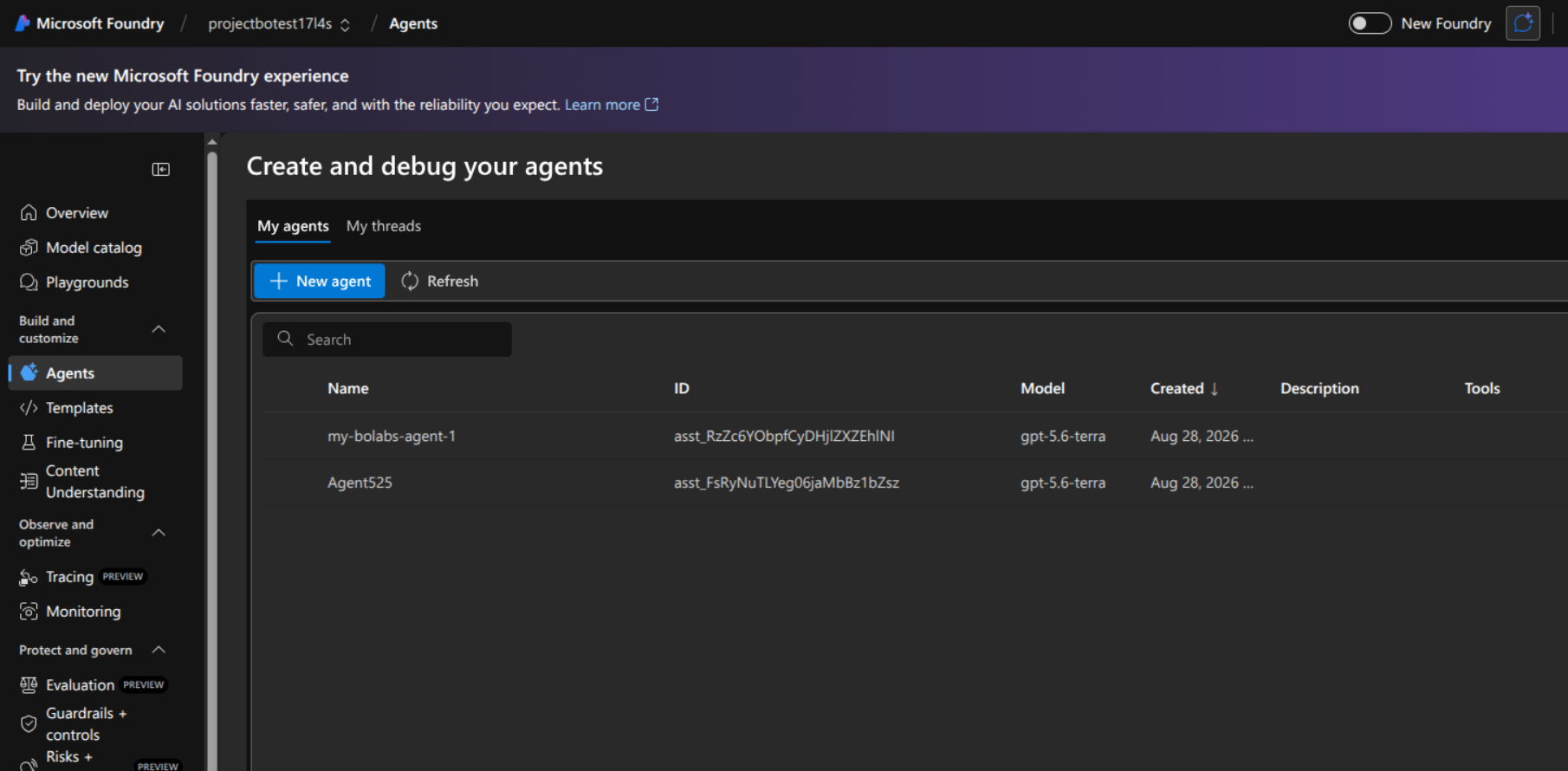
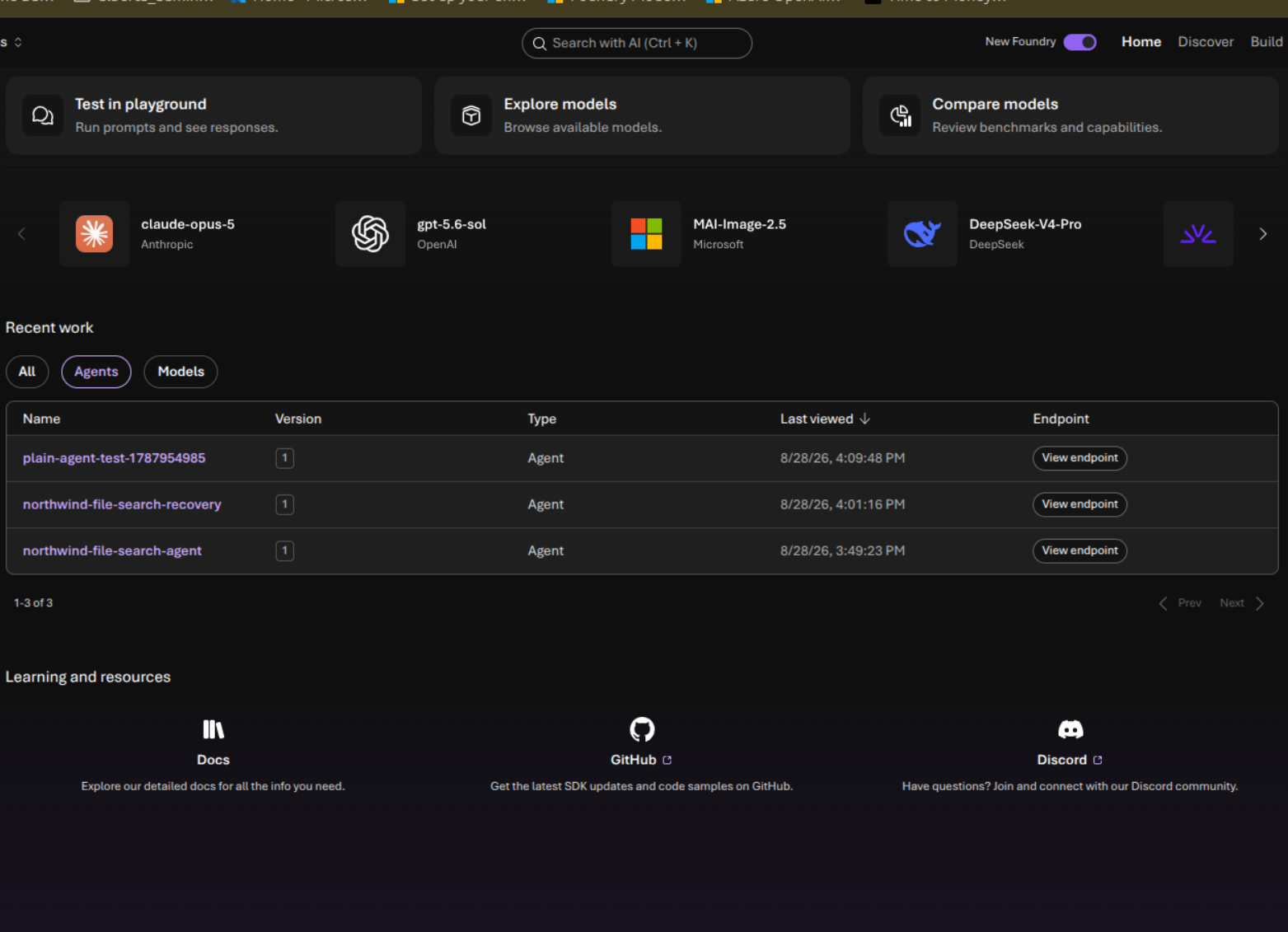
    BrightOnAGENTIC can discover agents represented in the classic Foundry project view and in the newer Foundry experience. Confirm that the agents you intend to secure are visible in the relevant Foundry project before scanning.

    Classic Microsoft Foundry project Agents page
    Example: agents listed inside a classic Foundry project.
    New Microsoft Foundry home showing recent agents
    Example: agents in the new Foundry experience.
  4. Select scope, authorize, and scan

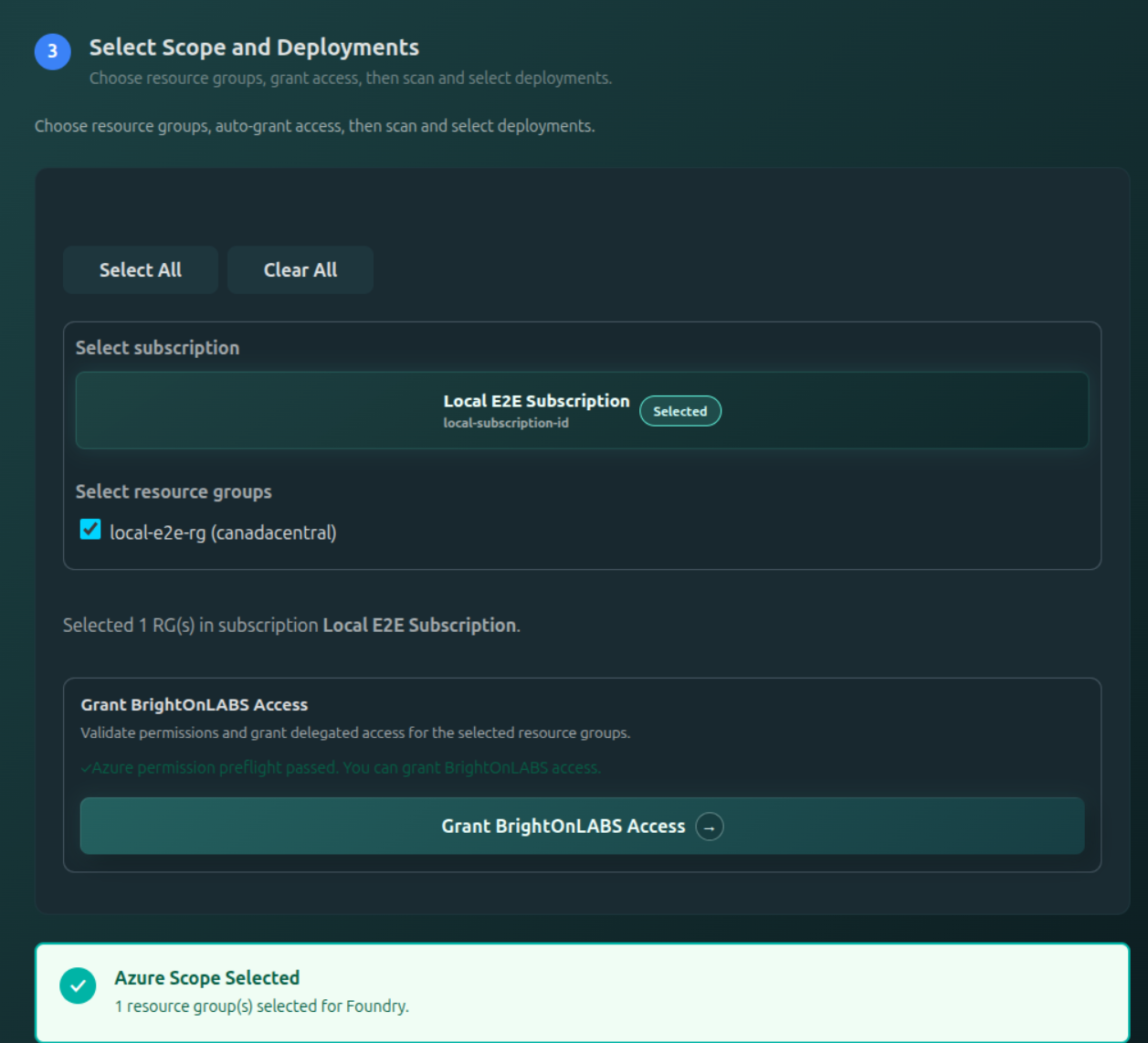
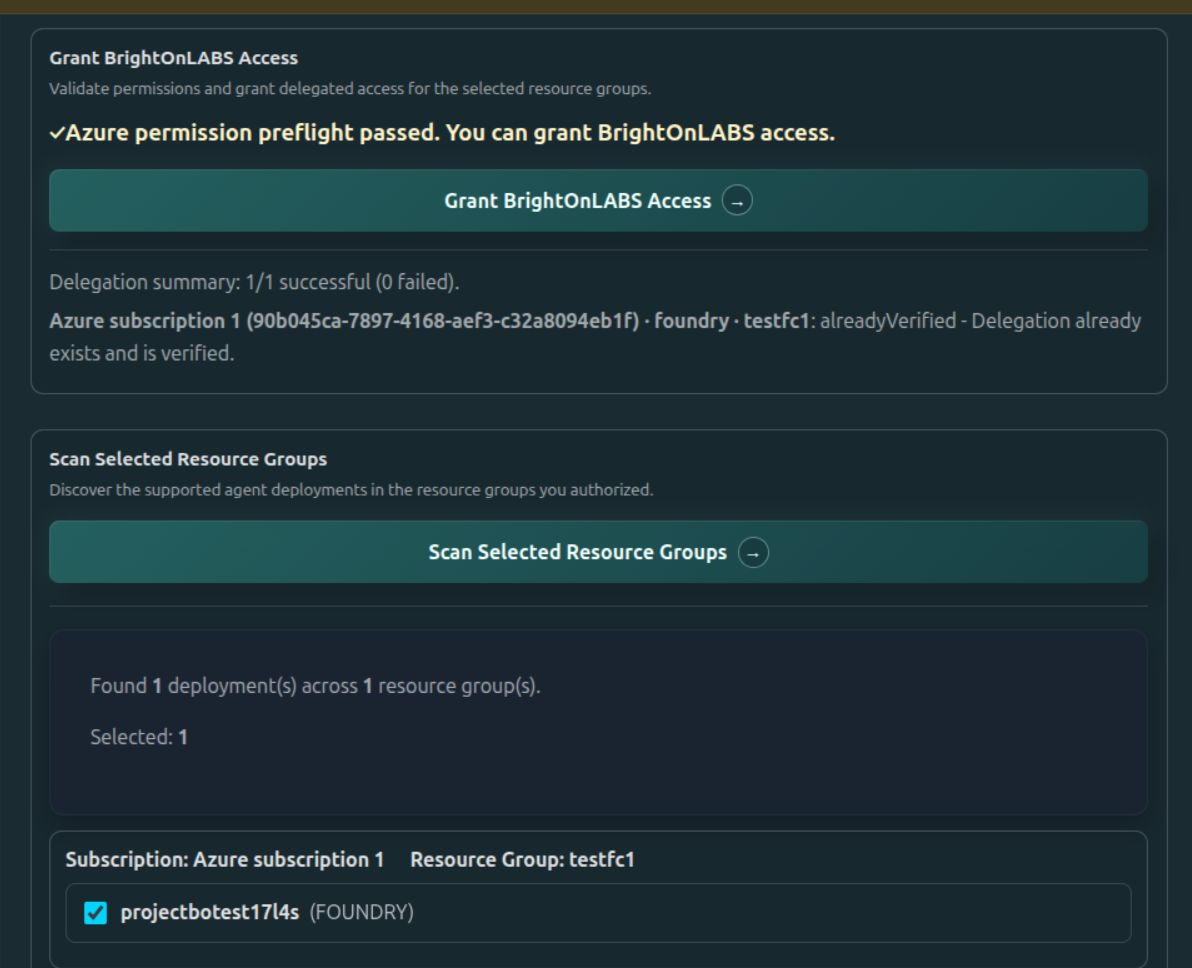
    Select the Azure subscription and only the resource groups that contain the deployments you want monitored. After the permission preflight passes, select Grant BrightOnLABS Access. Then scan the authorized resource groups and check each deployment to include.

    Azure subscription and resource group selection with access preflight
    Choose the subscription and resource groups, pass preflight, and grant delegated access.
    Successful Azure delegation followed by resource group scan results
    A successful delegation unlocks the resource-group scan and deployment selection.

    If you selected Microsoft Foundry

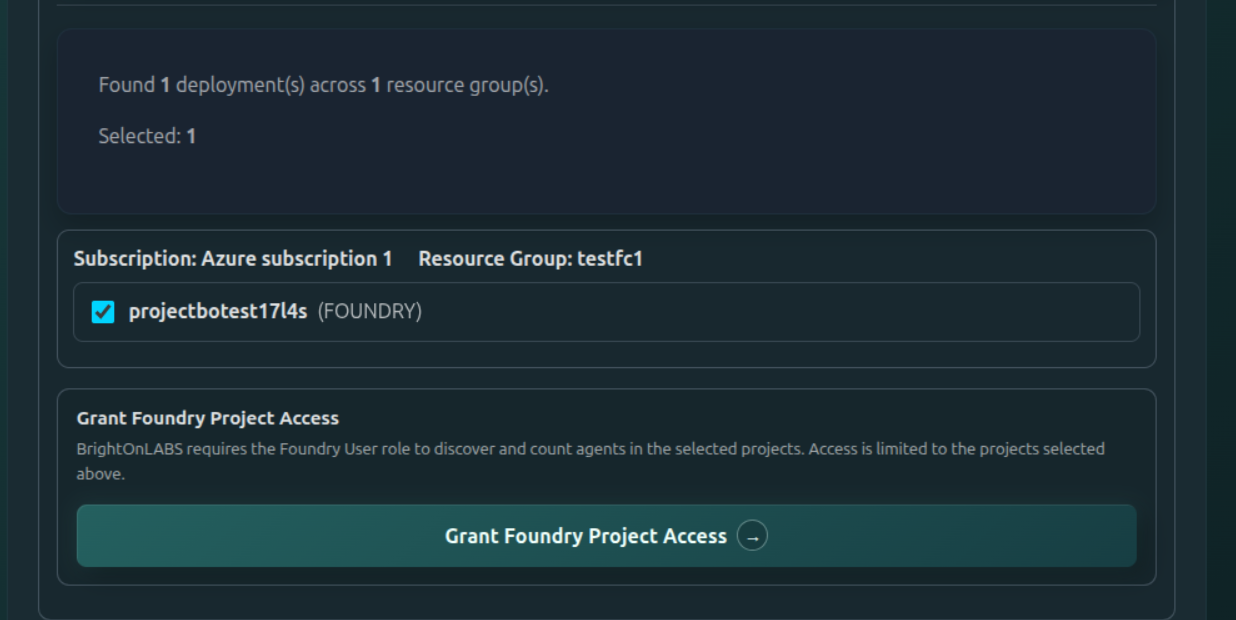
    Select the discovered Foundry project, then choose Grant Foundry Project Access. BrightOnLABS requests the Foundry User role for the selected projects so it can discover and count their agents.

    Foundry project selection and Grant Foundry Project Access button
    Project access is limited to the Foundry projects selected in this list.

    If you selected AKS with n8n

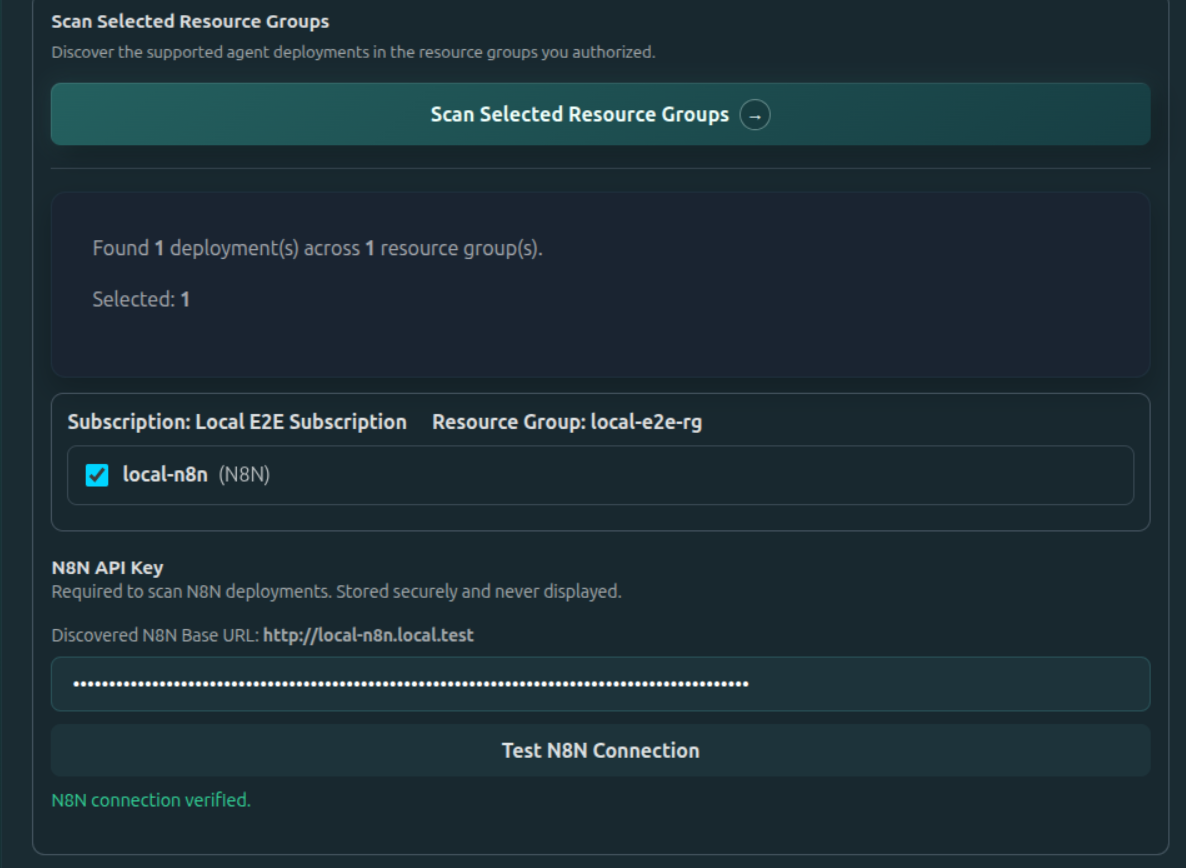
    Select the discovered n8n deployment, paste its API key, and choose Test N8N Connection. Continue only after the portal reports that the connection is verified.

    Discovered n8n deployment with API key and verified connection
    The n8n API key is stored securely and is not displayed after entry.

    Configure an AKS container registry

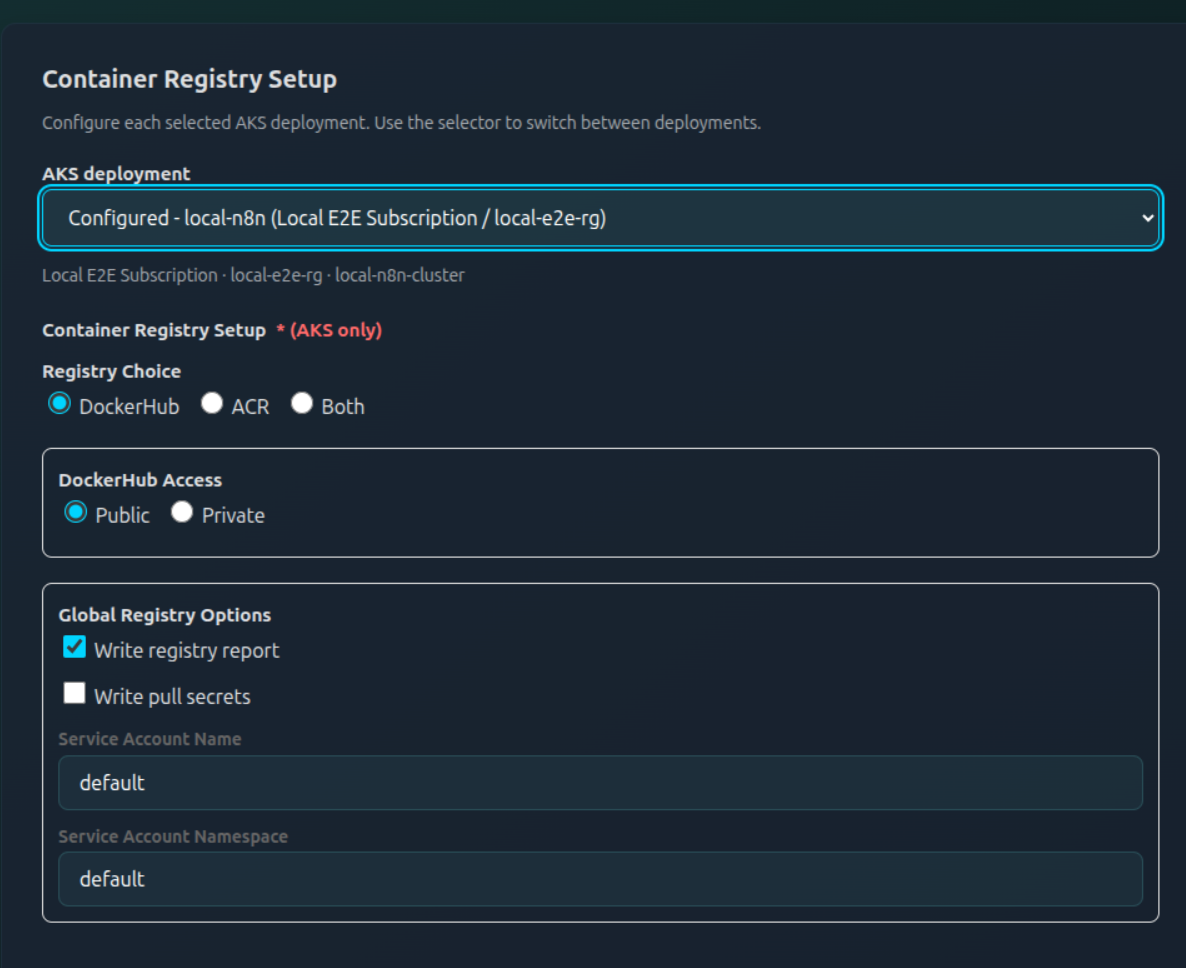
    For each selected AKS deployment, choose Docker Hub, ACR, or both. If the registry is private, provide the requested credentials. You can also write a registry report or pull secret and set the Kubernetes service account name and namespace. Repeat this setup for every deployment shown in the selector.

    AKS container registry configuration for Docker Hub or Azure Container Registry
    Use the AKS deployment selector to configure each discovered cluster separately.
  5. Accept the terms and conditions

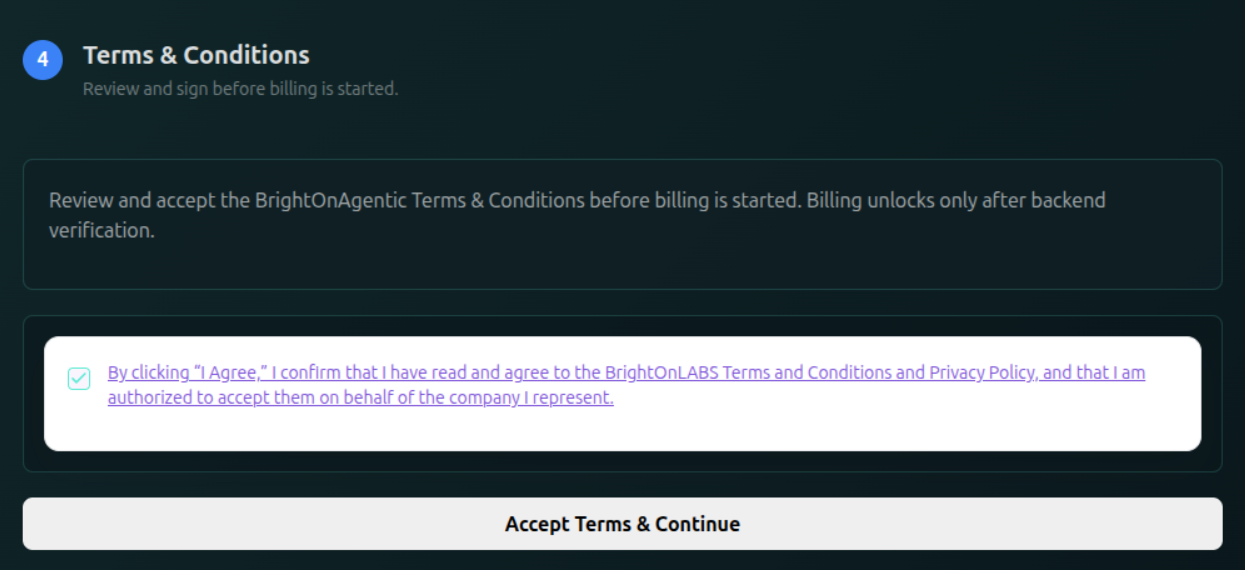
    Open the linked Terms and Conditions and Privacy Policy, confirm that you are authorized to accept them for your company, check the agreement box, and select Accept Terms & Continue. Billing remains locked until backend verification is complete.

    Terms and Conditions agreement required before billing
    The person accepting must be authorized to agree on behalf of the represented company.
  6. Choose a plan and activate the account

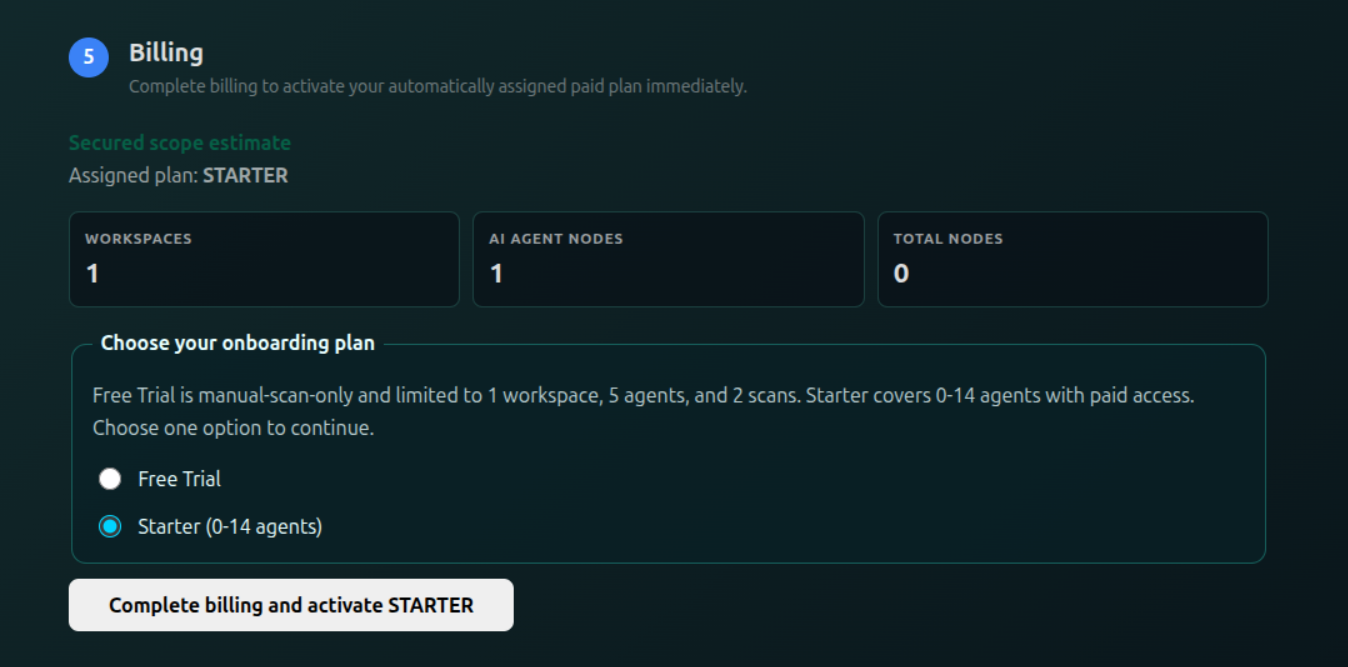
    Review the secured-scope estimate and the plan assigned from the discovered resources. Choose either the available Free Trial or paid plan, then follow the billing prompt to activate. The screen explains the limits of each option before you continue.

    Starter, Growth, and Enterprise all have annual contracts with monthly payments.

    Review Plans & Product Limits for scan allowances and how changes in usage can move your account to another plan.

    Billing screen with secured scope and Free Trial and Starter plan options
    Standard onboarding offers the plans available for the discovered agent count and workspace scope.
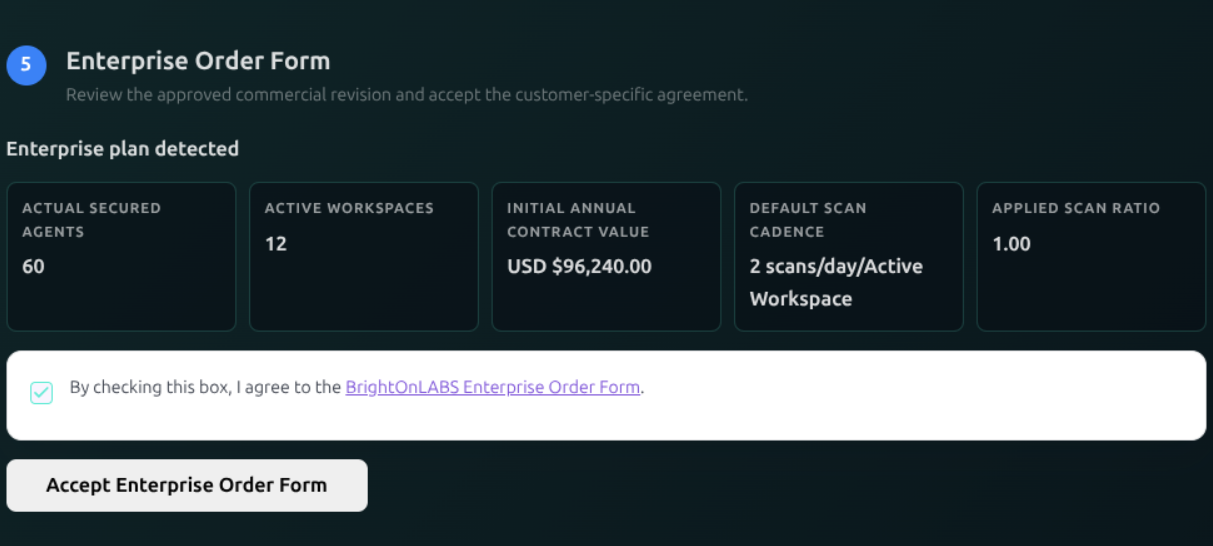
    Enterprise Order Form with contract and secured agent details
    Enterprise customers review the approved commercial terms and accept their customer-specific order form.
    Enterprise accounts If an enterprise plan is detected, verify the secured-agent count, workspaces, contract value, and scan cadence before accepting the Enterprise Order Form. Enterprise entered during onboarding carries an annual commitment.

Plans & Product Limits

Annual plans only, with monthly payments Starter, Growth, and Enterprise are available only as 12 monthly installments under a 12-month Contract Period. There is no annual payment in advance. This applies to Azure AI Foundry, CrewAI on AKS, and N8N on AKS. A monthly billing cycle is a payment interval within the annual commitment. Eligible plan transitions follow the rules below and retain the existing contract end date.

What counts as one workspace?

One workspace is one of the following enrolled deployment scopes:

  • One Azure AI Foundry project.
  • One CrewAI deployment scope in an AKS cluster.
  • One logical N8N server or instance in an AKS cluster; workers and replicas do not create additional workspaces.

In AKS, each supported framework deployment scope counts separately. A cluster running both N8N and CrewAI therefore counts as two workspaces. Multiple logical N8N instances in the same cluster also count separately. Each N8N workspace needs its own verified server URL and API key for inventory collection and ongoing scans. The account plan must cover the total workspace count across all project types.

Examples of workspace counting
Enrolled deployment Workspace count
One Azure AI Foundry project1 workspace
AKS Cluster A running N8N1 workspace
AKS Cluster A running CrewAI1 workspace
AKS Cluster A running both N8N and CrewAI2 workspaces
AKS Cluster B running another N8N instance1 additional workspace

Your plan determines the scope you can secure, how often automatic scans run, and which additional capabilities are available. Jump to Azure Foundry & CrewAI plans or N8N plans and pricing. If you combine project types, start with mixed-project plans and billing.

For a commercial quote, visit the pricing page. Review your current plan and allowances in Your profile, and your billing details under Company Billing.

All project types

Mixed projects: one account plan, two pricing pools

Foundry and CrewAI projects share one agent pricing pool: add their secured agents and workspaces together. All N8N workspaces share a second pool, with regular nodes and AI Agent nodes priced separately. Do not combine Foundry/CrewAI agents with N8N node counts.

The highest required tier must cover every workspace The required account plan is the highest of the N8N pool tier, the Foundry/CrewAI pool tier, and the tier required by the total workspace count across both pools. A contract lock or pending downgrade can keep the applied account plan higher until the transition takes effect.
Minimum account tier from the total workspace count
Total workspaces across all typesMinimum account tier
1Starter, unless either pool requires a higher tier.
2–3Growth, unless either pool requires Enterprise.
4 or moreEnterprise, even when both pools individually qualify for lower tiers.

The applied account plan controls the interface, features and automatic scan cadence for every workspace: weekly for Starter, daily for Growth, and every 12 hours by default for Enterprise after activation. Each pool retains its own pricing tier, minimum and contract terms. Add the two pool subtotals into one invoice. An account-level upgrade caused by combined workspaces does not by itself impose the Enterprise minimum on a lower-tier N8N or agent pool.

Account plan and full-month estimates for mixed scope, before tax
Selected scopePool pricing tiersAccount planMonthly estimate (USD)
1 N8N workspace: 18 regular + 2 AI nodes; 1 Foundry project: 6 agentsN8N Starter + agent StarterGrowth: 2 total workspaces$900 + $900 = $1,800
1 N8N workspace: 18 regular + 2 AI nodes; 1 Foundry project: 38 agentsN8N Starter + agent GrowthGrowth$900 + $5,415 = $6,315
3 N8N workspaces: 170 regular + 30 AI nodes in total; 1 CrewAI project: 38 agentsN8N Growth + agent GrowthEnterprise: 4 total workspaces$5,255 + $5,415 = $10,670; no added Enterprise floor for either pool
1 N8N workspace requiring Enterprise; 1 Foundry project requiring EnterpriseBoth pools EnterpriseEnterprise, even with only 2 workspacesSum of the two pools under their applicable Enterprise terms and usage

How plan changes work with two pools

Reassess each pool using its own units and workspace count. Apply that pool’s upgrade, grace, downgrade and contract-lock rules, then recheck the account plan against both applied pool tiers and total workspaces. A pool can become eligible for Starter while the account remains Growth or Enterprise. A lower account plan takes effect only when every condition is met and the applicable billing boundary or contract lock permits it.

A fourth total workspace requires Enterprise handling without node-excess grace. Conversely, reducing total workspaces to two cannot lower an account while either pool still requires or is locked to Enterprise.

Azure Foundry / CrewAI on AKS

Azure Foundry & CrewAI plans and capabilities

The following agent-based limits, billing minimums, scan allowances, and transition rules apply to the combined Foundry/CrewAI pricing pool. Agent counts are pooled across both project types. In a mixed account, features and automatic scanning follow the higher applied account plan. For N8N on AKS, use the N8N rules below.

Azure Foundry and CrewAI scope, automatic scanning, and Red Team access
Plan Secured scope Automatic scans Red Team
Free Trial Up to 5 agents and 1 workspace, for 7 days. None; manual scans only. Not available.
Starter 0–14 actual secured agents and exactly 1 active workspace. Once every 7 days per eligible workspace. Not available.
Growth 15–50 agents, or fewer agents across 2–3 active workspaces. Maximum 3 active workspaces. Once per day per eligible workspace. Available as an add-on.
Enterprise 51+ actual secured agents OR 4+ active workspaces, subject to transition rules, or an existing annual Enterprise commitment. Workspace allowance is defined in the contract. Twice daily by default, approximately 12 hours apart. Custom cadence available. Included or customized in the agreement.

Paid Starter and Growth workspaces provide dashboard, inventory, graph, and threat-analysis views. AI Trust Matrix is an Enterprise capability. Growth Red Team access requires the add-on; it is not included automatically with the base plan.

Azure Foundry / CrewAI on AKS

Foundry & CrewAI usage counts

Actual secured agents
The observed agent count in your secured scope, used to assess plan eligibility.
Active workspaces
Empty workspaces do not count as active for plan transitions. Two active workspaces prevent a move to Starter, even below 15 agents.
Billable agents
A billing minimum can exceed actual usage: paid Starter has a 6-agent minimum; Growth has a 15-agent minimum; an activated Enterprise agent pool has a 51-agent minimum until contract end.
Other account allowances
Check Your profile and Manage users for Azure subscription and user-seat allowances. These are separate from the agent and workspace thresholds above.

Workspace count affects eligibility and scan cadence. It is not a separate workspace fee. The Free Trial has no paid billing minimum.

Azure Foundry / CrewAI on AKS

Foundry & CrewAI scan schedules and allowances

An automatic schedule specifies how often each eligible workspace is scanned. It is separate from your manual-scan allowance. For example, Growth with 3 eligible workspaces schedules one scan for each workspace per day; that is not a shared monthly quota.

  • Free Trial: 2 manual scans total during the 7-day trial, with no automatic schedule.
  • Starter with 0–9 actual agents: weekly automatic scans; no manual scans included.
  • Starter with 10–14 actual agents: weekly automatic scans plus 2 manual scans per billing period. A manual scan does not change the next automatic run.
  • Growth: daily automatic scans per eligible workspace. Check the scan launcher for any manual allowance available to your account.
  • Enterprise: automatic cadence and manual allowances follow the agreed contract, with twice-daily automatic scanning as the default.

Before queuing a manual scan, check the remaining allowance in the scan launcher. Using a manual allowance does not consume or replace the paid plan’s automatic schedule.

Azure Foundry / CrewAI on AKS

Foundry & CrewAI plan transitions

Starter to Growth: immediate

The paid plan moves from Starter to Growth when actual secured agents reach 15, or active workspaces increase above 1, provided the scope stays within Growth’s limits. This applies when a manual or scheduled scan detects the changed scope. Monthly settlement reflects the pricing applicable before and after the change. Do not add a duplicate upgrade charge for usage already included in settlement.

Growth to Starter: next monthly billing cycle

A downgrade takes effect at the next billing cycle only when both conditions are met: 14 or fewer actual secured agents and exactly 1 active workspace. Reducing agents alone is not enough. Until the change takes effect, the current plan remains Growth. The annual contract continues through its existing end date after the plan changes.

Growth to Enterprise: scan-detected agent increase

If a manual or scheduled scan detects more than 50 secured agents, an in-app and email notice gives you 48 hours to reduce the count to 50 or fewer. If the count remains above 50 when the window expires, Enterprise activates automatically. Letting the window expire with the excess scope counts as approval of the transition, and the applicable billing adjustment begins. Enterprise then remains in effect for the remaining duration of the current annual contract.

The grace window is available only twice On the third scan-detected threshold occurrence, the account moves directly to Enterprise without another grace window. During an allowed window, agents above 50 are still chargeable under the Growth grace-period treatment; the window is not free excess usage.

Enterprise scope selected during deployment setup

Adding a deployment that selects more than 50 agents or more than 3 active workspaces triggers Enterprise immediately, with confirmation during the deployment workflow before activation. That action is treated as explicit approval. The scan-detected 48-hour window does not apply to this confirmed scope selection.

Once Enterprise is active

Enterprise is always an annual commitment, whether activated during onboarding or through a usage-based transition. Onboarding establishes the annual Enterprise term. A transition during an existing annual contract applies for the remainder of that contract, through its existing end date.

Enterprise remains in effect until that annual contract ends, with a minimum of 51 billable agents. Reducing the agent or workspace count—even removing all agents—does not unlock an earlier downgrade. No downgrade credit applies during the contract unless the agreement explicitly provides for one.

Azure Foundry / CrewAI on AKS

Foundry & CrewAI usage examples

What changes, and when the new plan applies
Situation Result Timing
Starter: a scan increases the count from 14 to 15 agents in 1 workspace. Growth; settlement reflects the effective date and applicable minimum. Immediate.
Growth: removing 7 of 20 agents empties one workspace, leaving 13 agents in 2 active workspaces. Remains Growth. Both Starter conditions must be met. No plan downgrade.
Growth: scope falls to 14 agents in exactly 1 active workspace. Starter. Next monthly billing cycle; the annual contract continues.
Growth: a scan detects an increase from 30 to 75 agents; a grace window is still available. Reduce to 50 or fewer within 48 hours; otherwise Enterprise activates for the remainder of the annual contract. After the notice window if unresolved. No window on the third occurrence.
Growth: deployment setup adds a fourth active workspace with 40 agents. Enterprise, even though agent count is below 51. Upon confirmation and activation.
Enterprise: all agents are removed during the contract. Remains Enterprise, with the 51-agent billing minimum. Commitment continues until the annual contract ends.
Azure Foundry / CrewAI on AKS

Foundry & CrewAI annual commitment and billing

Free Trial is available through trial onboarding. Move to a paid plan when the trial ends or when you select paid scope. Follow the account activation step to complete the applicable terms and billing process.

Usage is accounted for daily and aggregated into the monthly invoice; it does not mean your card is charged every day. Monthly settlement weights pricing snapshots over their effective duration, with each pool’s minimum applied to each segment. For example, Growth with 35 agents for half a month and 13 for half uses 35 billable agents first, then the 15-agent Growth minimum until an eligible downgrade takes effect.

For an eligible Growth-to-Starter transition, the lower plan charge applies from the next monthly billing cycle. Payments continue monthly for the remainder of the annual contract. Enterprise transitions remain subject to the commitment and minimum billing rules above.

Mid-contract transition example A customer on an annual Growth contract pays monthly. If an eligible change to Starter takes effect at the start of month 7, the first 6 months are billed under Growth and the remaining 6 months under Starter. The original annual contract end date stays the same.
N8N deployed on AKS

N8N paid plans and limits

N8N plan eligibility uses total functional nodes and enrolled workspaces, pooled across the subscription. Total nodes include regular nodes and AI Agent nodes. AI Agent count affects the price, but does not have a separate plan-upgrade threshold.

N8N scope limits, monthly pricing, and automatic scans
Plan Enrolled scope Monthly pricing (USD) Automatic scans
Starter Exactly 1 workspace AND up to 100 total nodes. Graduated node charges, with a $900 minimum. Weekly per workspace.
Growth Starter limits exceeded, with no more than 3 workspaces AND 500 total nodes. Graduated node charges with a minimum of 101 total billable nodes. Any shortfall is added as regular nodes. Daily per workspace.
Enterprise More than 3 workspaces OR more than 500 total nodes, subject to the transition rules below, or an existing Enterprise contract lock. Graduated node charges with a minimum of 501 total billable nodes, subject to the applicable contract. Any shortfall is added as regular nodes. Twice daily by default.

All prices are in USD, per month, before taxes. No additional workspace fee applies. These limits select the N8N pool’s tier; the account tier also covers the other pricing pool and total workspaces. In a mixed account, all workspaces receive the applied account’s scan cadence. Enterprise scope and service remain subject to the contract; there is no fixed fee for unlimited usage. The Foundry/CrewAI 51-agent minimum does not apply to N8N.

N8N deployed on AKS

What counts toward N8N usage

Workspace
One enrolled N8N instance. A workflow or worker replica is not a separate workspace.
Total functional nodes
Regular nodes plus AI Agent nodes in assessed workflows within the enrolled scope. Sticky notes are excluded.
Regular nodes and AI Agent nodes
Each functional node is counted once. The supported AI Agent type is @n8n/n8n-nodes-langchain.agent; other functional node types are regular. Sticky notes (n8n-nodes-base.stickyNote) are excluded. AI Agent nodes are never also billed as regular nodes.
Unique inventory
Nodes are identified by workspace, workflow, and node ID. Repeated executions and repeated discovery do not add billable nodes.
Enrolled workflows
Inactive workflows count only when enrolled and assessed. Archived or unselected inventory is not automatically billable.

Counts require a complete, successful inventory, including all API pages. An API failure or incomplete response must not be treated as zero usage, remove enrolled workspaces, or trigger a downgrade. Explicit scope changes and valid observations determine the inventory. If one server cannot be collected completely, preserve its last complete inventory rather than reducing billable usage to zero.

N8N deployed on AKS

Graduated node pricing

Pool regular nodes across all enrolled N8N workspaces, and pool AI Agent nodes separately. Apply each rate only to the nodes in its band, once across the subscription. Reaching a lower rate does not reprice earlier nodes, and the bands do not restart for each workspace.

Current N8N monthly marginal rates, before taxes
Node type Band within that node type USD per node per month
Regular nodes1–80$24
Regular nodes81–160$22
Regular nodes161–500 for Starter/Growth; 161 onward for Enterprise$20
AI Agent nodes1–10$50
AI Agent nodes11–25$45
AI Agent nodes26 onward, within the plan’s total-node limit$40

Before pricing a Growth or Enterprise pool, apply its total-node minimum: billable regular nodes = actual regular nodes + MAX(plan minimum − actual total functional nodes, 0). AI Agent nodes remain at their actual count. Price these two quantities using their respective graduated bands, then add the amounts. For Starter, apply the greater of the combined node charges and $900 per month.

One minimum per N8N pool, not per server or node category Growth has a 101-total-node minimum; Enterprise has a 501-total-node minimum. There is no separate AI Agent minimum. Any missing nodes are billed as regular nodes. There is no separate category ceiling: Starter and Growth are constrained by their combined total-node limits. Enterprise regular-node pricing continues beyond 500.

An active N8N Enterprise pool retains its 501-node minimum even if usage later falls below Enterprise eligibility. Actual usage and node mix still determine the monthly amount. Existing contracts retain their pinned pricing version and agreed terms; the current schedule does not silently replace historical pricing.

N8N deployed on AKS

N8N plan transitions

Scope triggers, effective dates, and contract effects
Transition Trigger Timing and treatment
Starter to Growth More than 100 total nodes OR more than 1 workspace, while staying within 500 nodes AND 3 workspaces. Immediate, with customer notification. Monthly settlement uses the effective date and the 101-node Growth minimum for Growth segments.
Growth to Starter 100 or fewer total nodes AND exactly 1 workspace. Next monthly billing cycle after rechecking eligibility; cancel the downgrade if scope no longer qualifies. Until then, Growth’s 101-node minimum remains. Starter’s $900 minimum applies from the new cycle.
Starter or Growth to Enterprise: scan-detected nodes A complete scan discovers more than 500 total N8N nodes, with no more than 3 total account workspaces and a grace attempt available. 48-hour notice. A complete inventory showing recovery to 500 nodes or fewer cancels the pending move. Otherwise Enterprise applies after the window under its notice and contract terms. Later scans do not restart the deadline.
Starter or Growth to Enterprise: workspace increase Enrolled workspace count exceeds 3, even with few nodes. Immediate at scope activation. Enterprise terms are presented during onboarding or scope selection.
Starter or Growth to Enterprise: deliberately selected scope Confirmed scope exceeds 500 total nodes OR 3 workspaces. Immediate at confirmed activation, with Enterprise terms and no 48-hour grace window.
Enterprise with reduced scope Nodes or workspaces fall below Enterprise thresholds before the contract ends. No downgrade during the contract lock. The N8N pool retains the 501-total-node minimum, with any shortfall billed as regular nodes and AI Agents billed at actual count.
Enterprise to Starter or Growth The Enterprise contract ends and the scope qualifies for a lower plan. Reassess at contract end or renewal and apply the newly agreed plan. A renewed Enterprise contract retains its lock.
N8N grace is available at most twice Grace history is tracked per subscription’s N8N pool. After two attempts, a further qualifying excess transitions without another 48-hour window. Deliberate excess and a fourth total account workspace do not receive this grace. Pool and account contract locks remain independent.
N8N deployed on AKS

N8N monthly pricing examples

Full-month prices in USD, before taxes, with no existing Enterprise contract lock
Plan Workspaces Total nodes Actual regular nodes AI Agent nodes Monthly price
Starter120182$900
Starter180755$2,050
Starter1100955$2,500
Growth220182$2,438: 99 billable regular nodes + 2 AI Agent nodes
Growth330028515$6,905
Growth345043020$10,030
Growth350047525$11,155
Enterprise15015010$10,500

For 300 total nodes including 15 AI Agent nodes, the 285 regular nodes cost (80 × $24) + (80 × $22) + (125 × $20) = $6,180. AI Agent nodes cost (10 × $50) + (5 × $45) = $725, for a total of $6,905 per month. The 80-node and 300-node examples are reference configurations; the Starter and Growth ceilings remain 100 and 500 total nodes.

N8N deployed on AKS

N8N billing and scan allowances

N8N uses 12 monthly installments under a 12-month Contract Period, including Enterprise Order Forms. Monthly settlement weights the applicable pricing snapshots over their effective duration and applies each segment’s pool minimum. An upgrade must not produce a second charge for usage already included in settlement. Payment retries must not duplicate the charge. An eligible Growth-to-Starter downgrade takes effect at the next monthly boundary after rechecking scope; the existing contract end date remains.

For example, an N8N Growth pool with 120 regular nodes for exactly half a month and 20 regular nodes for the other half is billed using $2,800 and $2,382 monthly run rates. The second segment retains Growth’s 101-node minimum, giving ($2,800 + $2,382) ÷ 2 = $2,591 for the month. With two N8N workspaces still enrolled, the pool cannot downgrade to Starter even if it has 100 or fewer nodes.

An N8N Enterprise pool that falls to 20 regular nodes and no AI Agent nodes remains Enterprise during its lock: bill 501 regular nodes for a $10,500 full-month run rate under the current schedule. An Enterprise account caused solely by combined workspaces does not impose this floor on a lower-tier pool. The pricing table shows full-month estimates; actual settlement reflects effective usage, pricing versions and contract terms.

Enterprise onboarding requires the applicable Order Form, payment arrangement and activation approval. An accepted Order Form alone is not an active subscription. Authorized internal admins and company super_admins can approve activation and monthly payments, subject to the payment prerequisites.

Automatic scanning follows the applied account plan for every workspace, including mixed accounts: Starter weekly, Growth daily, Enterprise every 12 hours by default after activation. These paid-pricing rules do not introduce an N8N-specific manual-scan quota or change trial terms. Check your trial offer and the scan launcher for the allowances available to your account.
Workspace Overview

The BrightOnAGENTIC workspace brings operational status, discovered AI resources, security analysis, compliance controls, and adversarial assessment into one investigation flow. Start on the dashboard for company-wide posture, then move from a deployment or resource into its graph, threats, controls, and supporting evidence.

Dashboard Profile & users Deployments Inventory Graph Threats Remediation Trust Matrix Red Team
01 · Dashboard

Monitor tenant health and start investigations

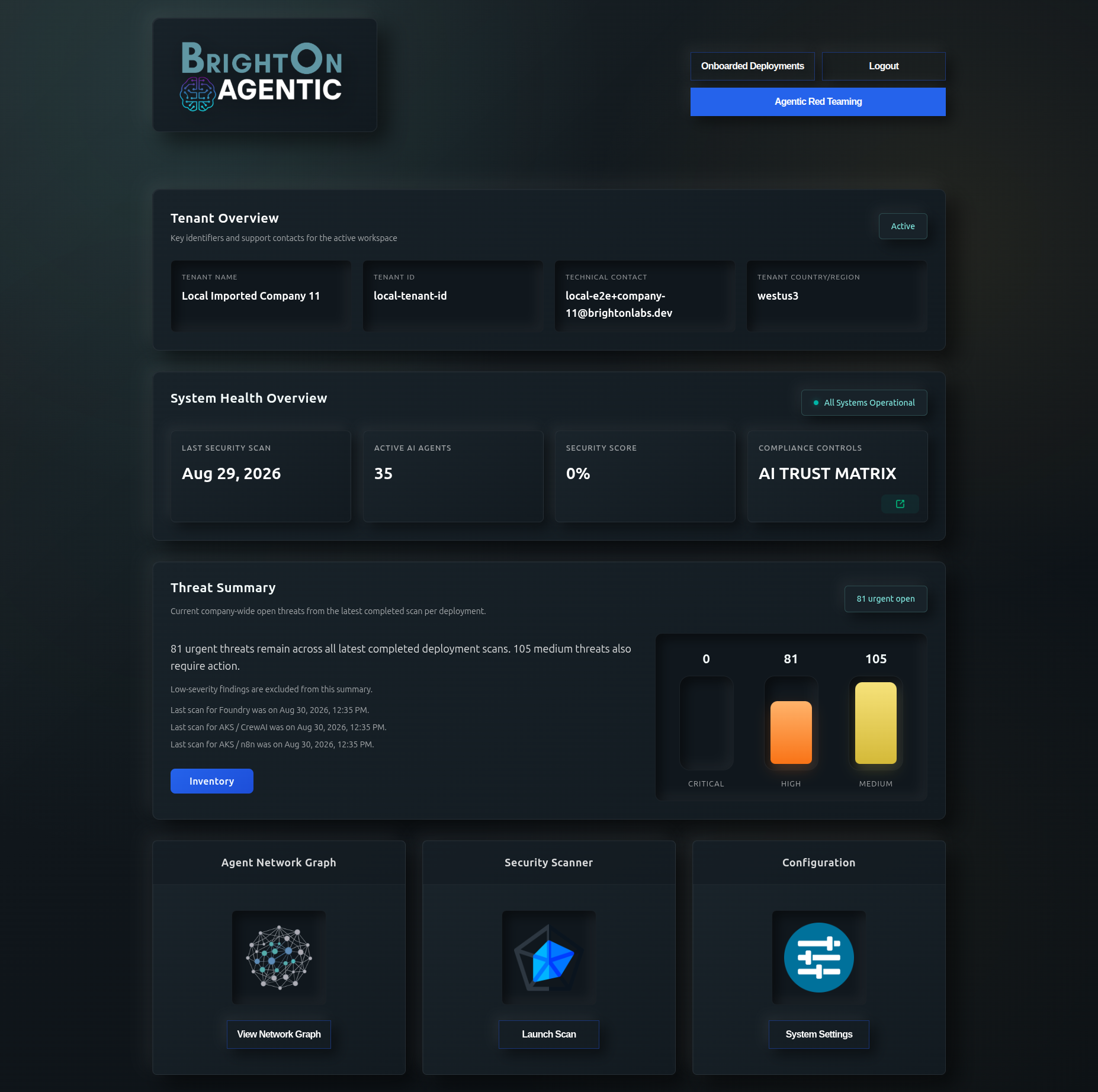
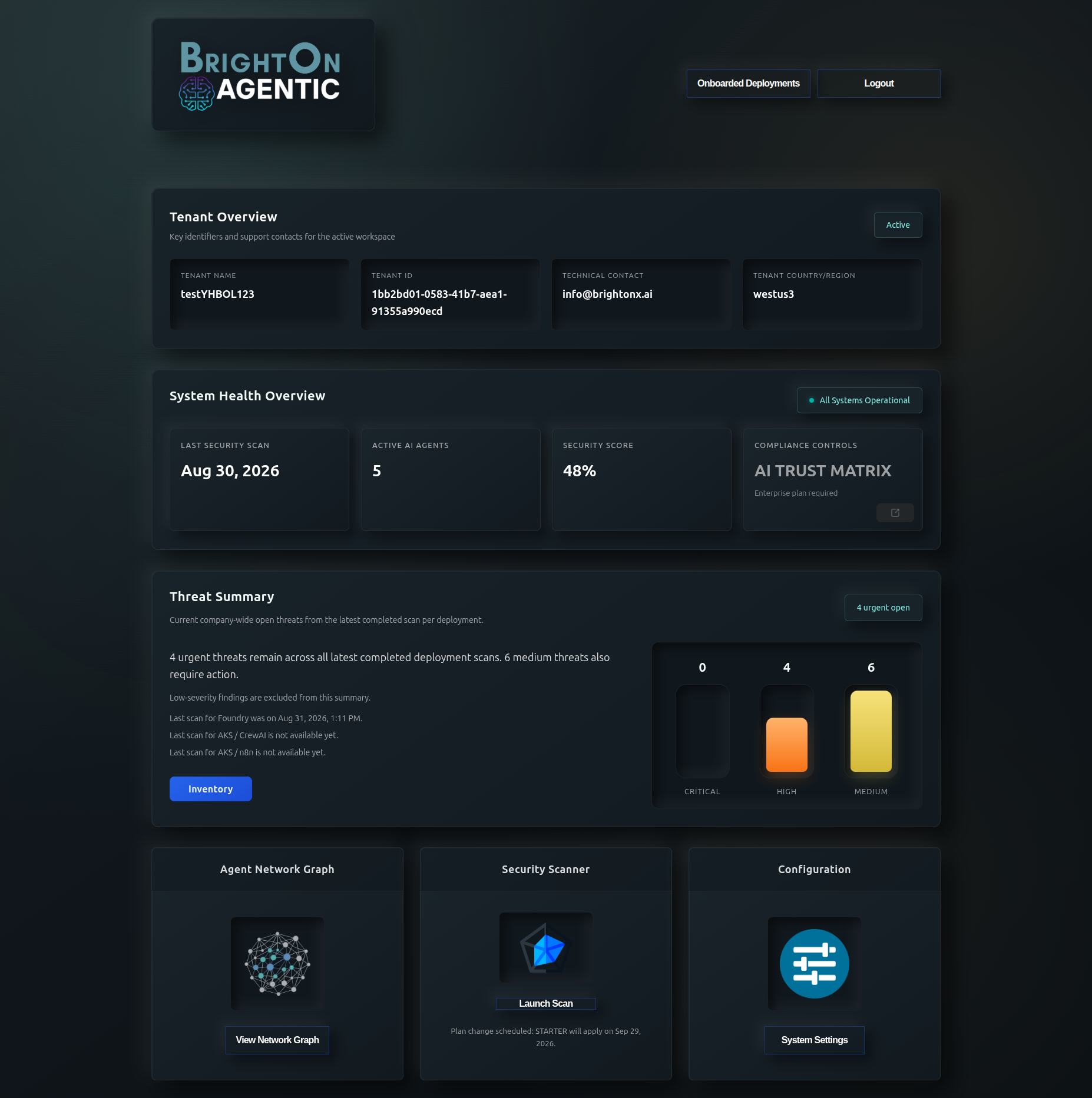
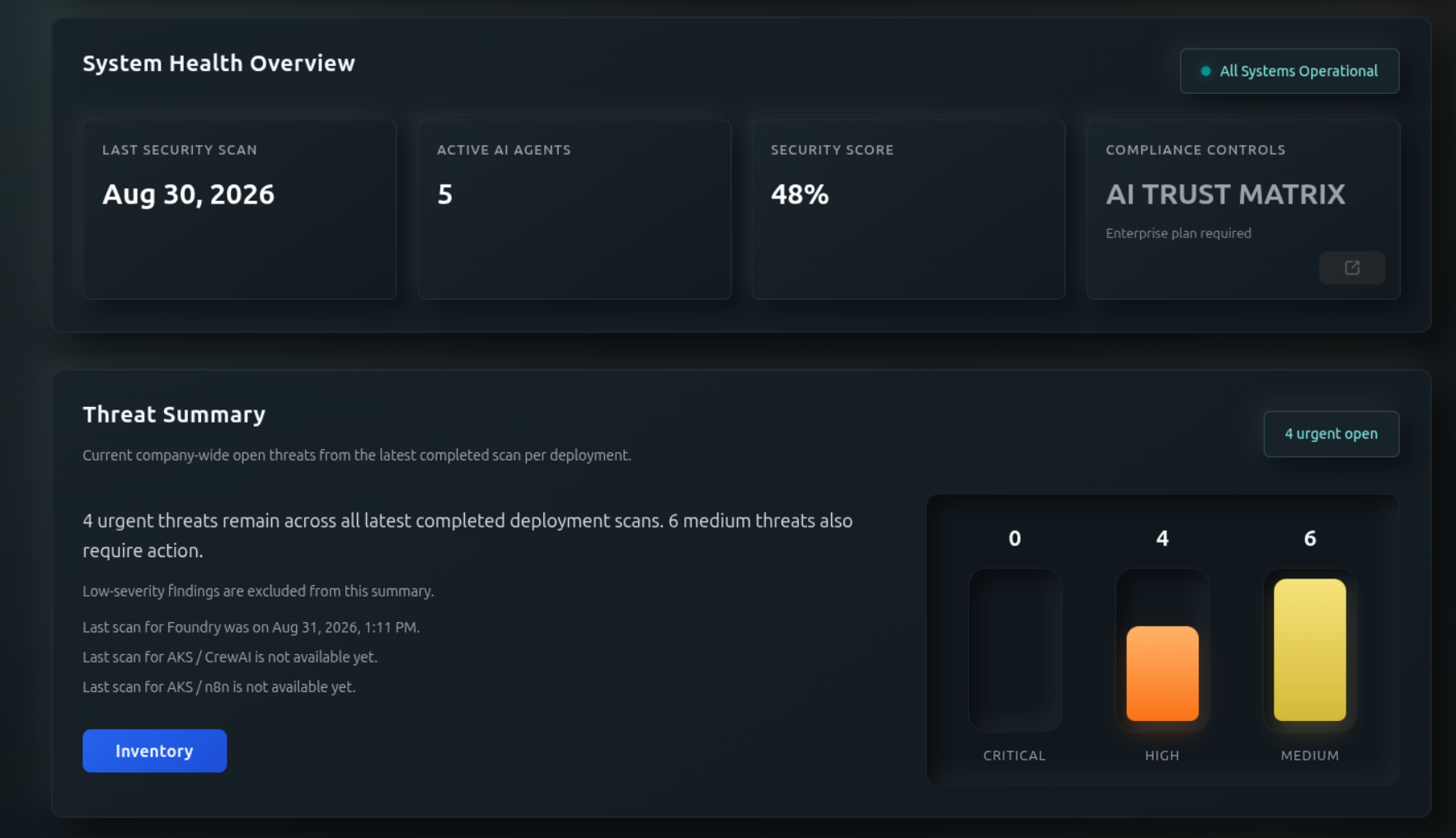
The dashboard is the workspace landing page. Tenant Overview identifies the active company, tenant, technical contact, region, and status. The System Health Overview reports the most recent security scan, active-agent count, security score, and Trust Matrix availability.

Use Threat Summary to triage open critical, high, and medium findings from the latest completed scan for each deployment. Low-severity findings are intentionally not included in this summary; open Inventory for resource-level detail.

Enterprise dashboard with tenant overview, system health, threat summary, and workspace shortcuts
Enterprise dashboard: review tenant status and aggregate risk, then open the graph, scanner, configuration, inventory, Trust Matrix, or Agentic Red Teaming.
Starter or Growth plan dashboard with Trust Matrix marked as requiring Enterprise
Starter and Growth dashboards retain health, threat, graph, scanning, and configuration tools. Enterprise-only controls are visibly unavailable.
Dashboard system health and threat summary panels
Health and threat totals are based on each deployment’s latest completed scan, so check the displayed scan times when comparing results.

Launch a manual scan

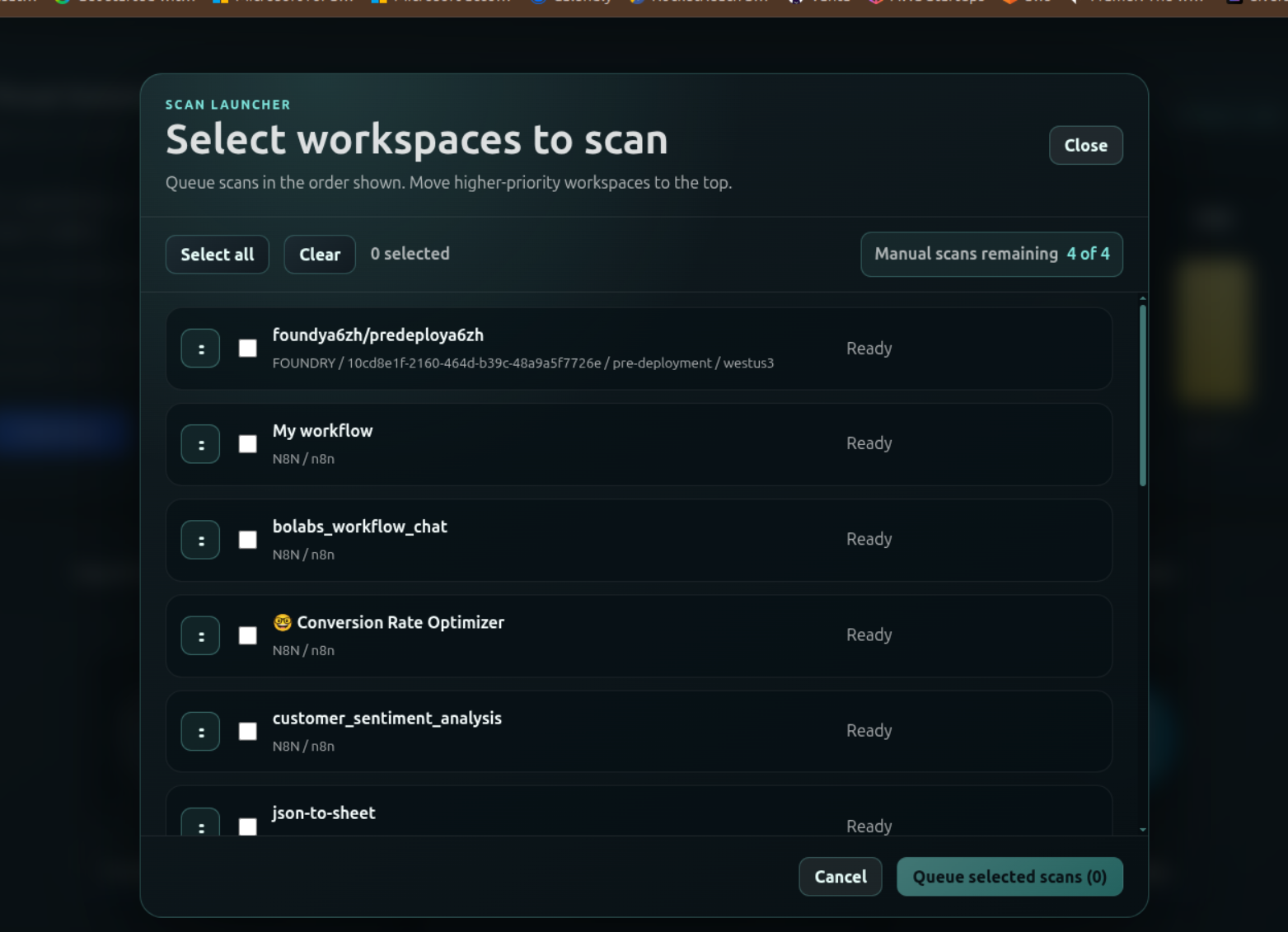
Select Launch Scan, choose one or more ready workspaces, and arrange them in the desired queue order. The launcher shows the number of manual scans remaining for the account. Select Queue selected scans to submit the queue.
Manual scanning depends on your plan’s available allowance. See scan schedules and manual allowances before queuing a scan.

Scan launcher for choosing and prioritizing workspaces
Select individual workspaces or use “Select all.” Move higher-priority scans to the top before submitting the queue.
02 · Profile

Manage your account and organization capacity

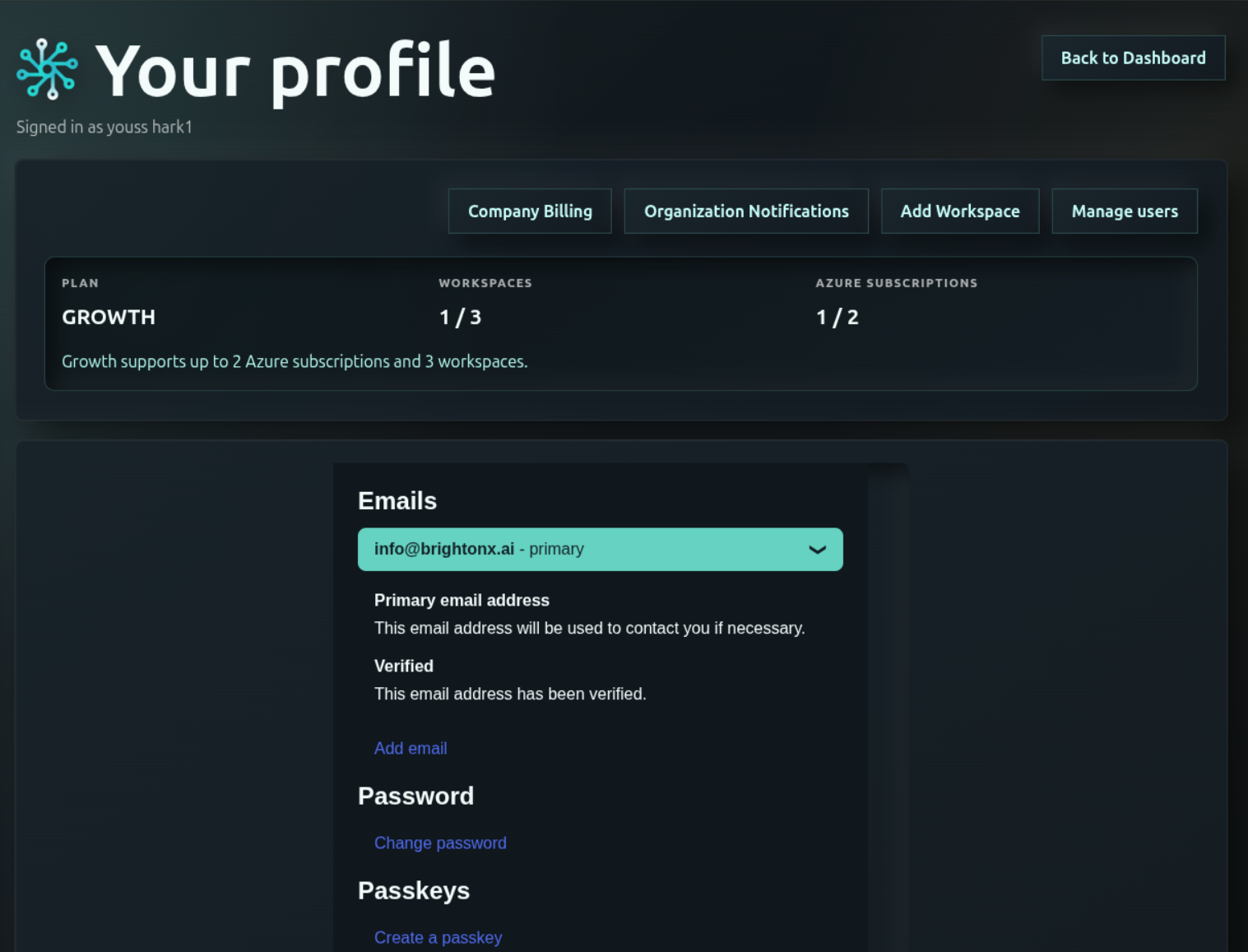
The profile page shows the current plan and consumption of workspace and Azure subscription allowances. From here, open company billing, configure organization notifications, add a workspace, or manage users. The identity panel also lets you manage verified email addresses, change your password, and create passkeys.

Profile settings showing plan limits, organization actions, email, password, and passkey settings
Review plan usage before adding a workspace or Azure subscription. Your primary verified email is used for necessary account contact.
03 · User management

Grant company access deliberately

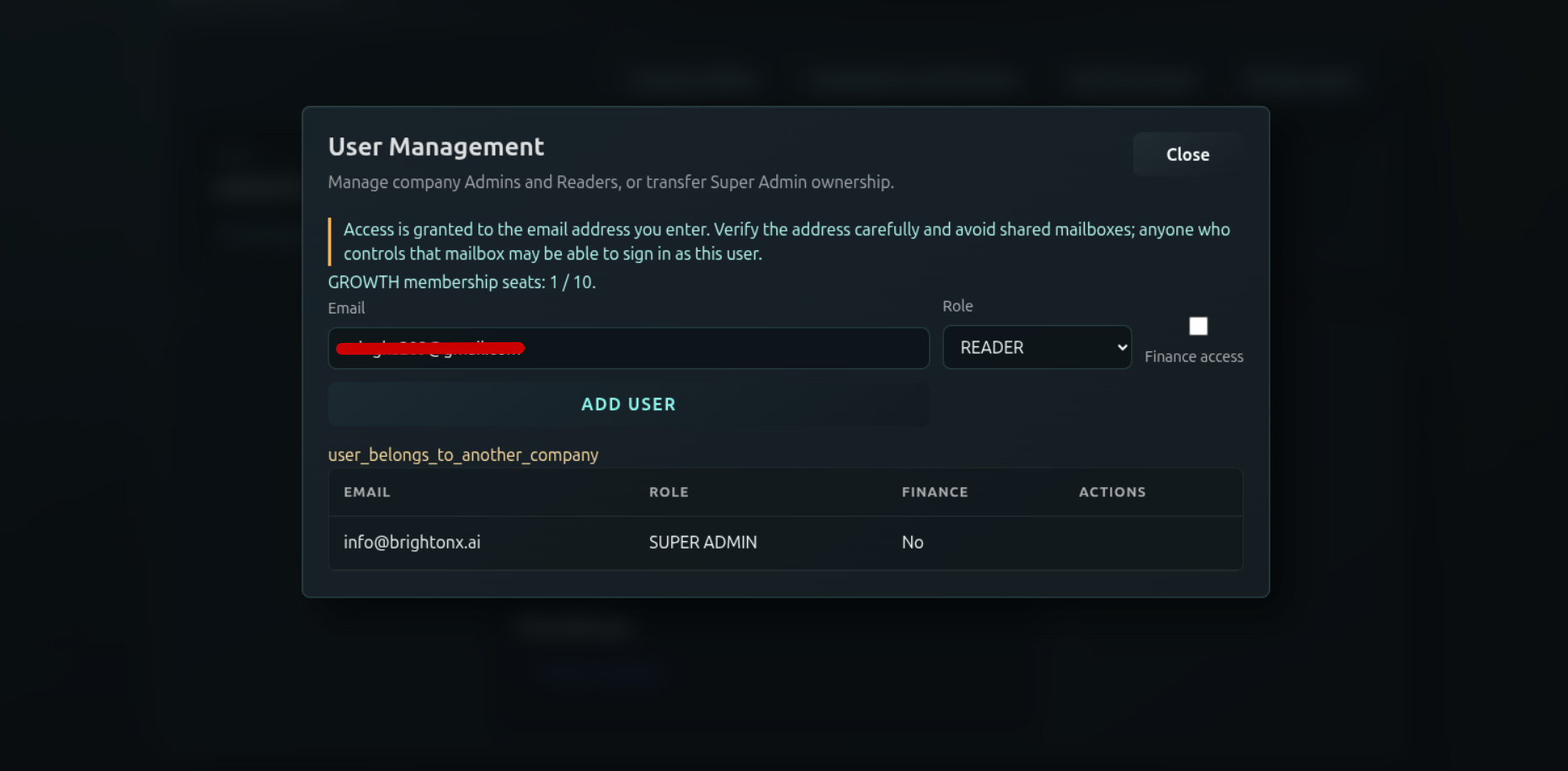
Open Manage users from the profile page to add company Admins or Readers, optionally grant finance access, review consumed membership seats, and manage Super Admin ownership. Access is tied to the exact email address entered.

Verify every address Avoid shared mailboxes. Anyone who controls the mailbox may be able to sign in as that user. Assign only the role and finance access required for the person’s responsibilities.
User Management dialog with email, role, finance access, and membership seats
Choose a role, decide whether finance access is needed, and verify the email before selecting “Add User.”
04 · Deployments

Check connections and scan schedules

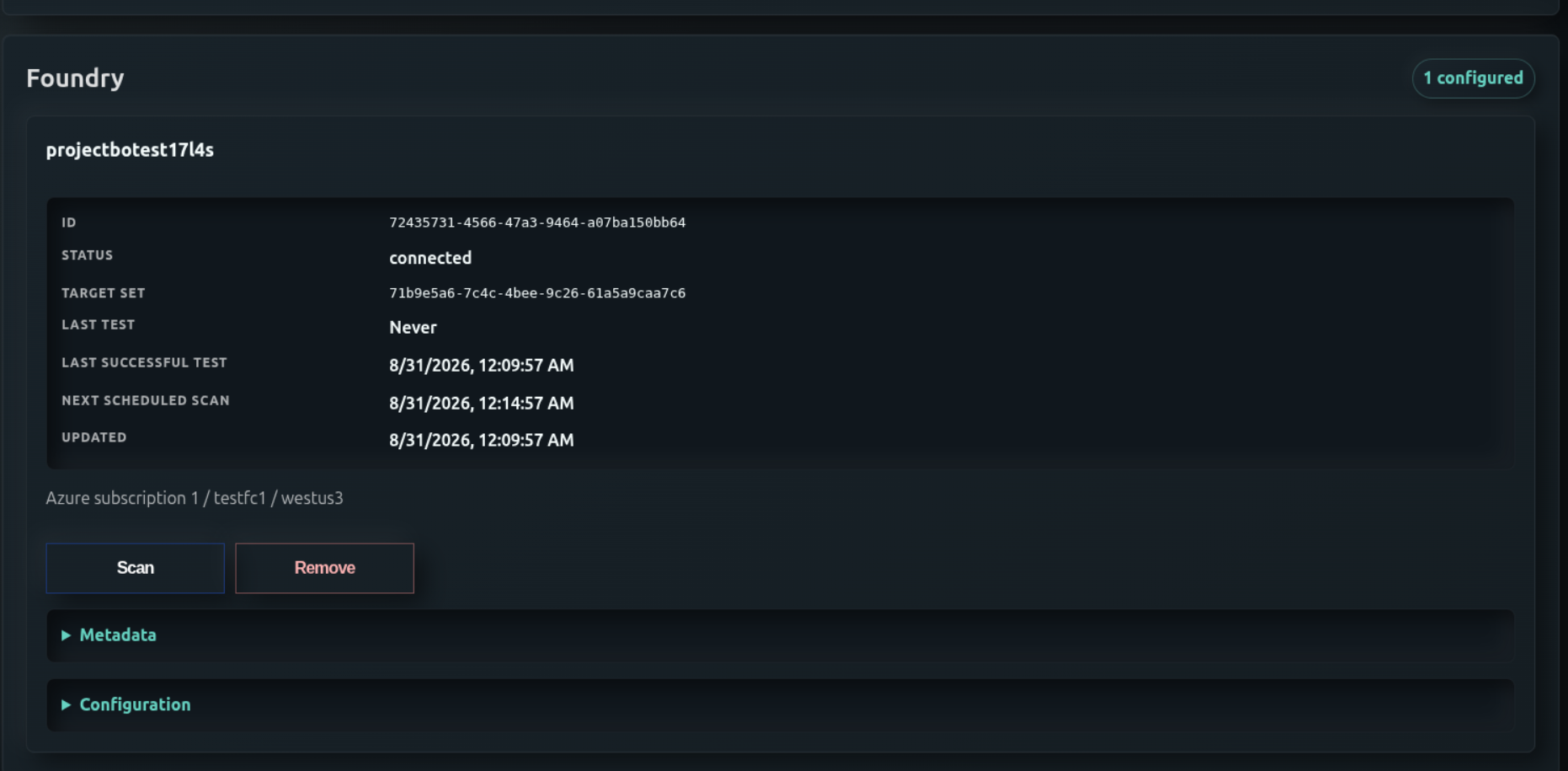
Onboarded Deployments groups connected resources by platform, such as Foundry. Each deployment card shows its ID, connection status, target set, latest test, most recent successful test, next scheduled scan, and last update time. Expand Metadata or Configuration for additional context.

Scan Starts a scan for the selected connected deployment.
Remove Disconnects the deployment. Confirm the target carefully before using this action.
Onboarded Foundry deployment with connection and scan details
A connected deployment displays its Azure subscription, resource group, region, and scan timing in one card.
05 · Resource inventory

Inspect discovered agents, tasks, tools, and risk

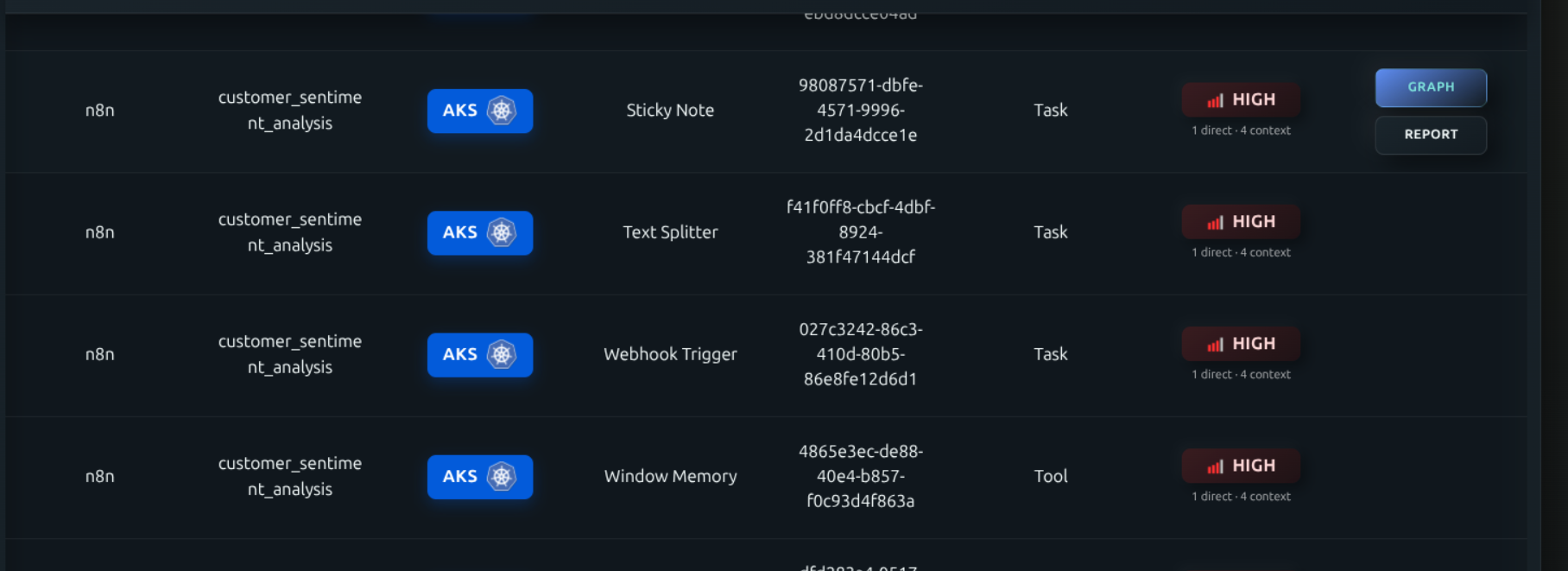
Resource Inventory lists the components found during scanning. Use the platform, deployment, infrastructure, resource name, resource type, and identifier columns to locate an item. The risk indicator summarizes direct findings and contextual exposure inherited through related graph nodes.

Select Graph to open the resource in its dependency context, or Report to review the available assessment output.

Resource Inventory rows for n8n resources on AKS with high-risk indicators
Example n8n inventory: tasks and tools discovered in an AKS workflow, with direct and contextual risk counts.

Open resource-level threats

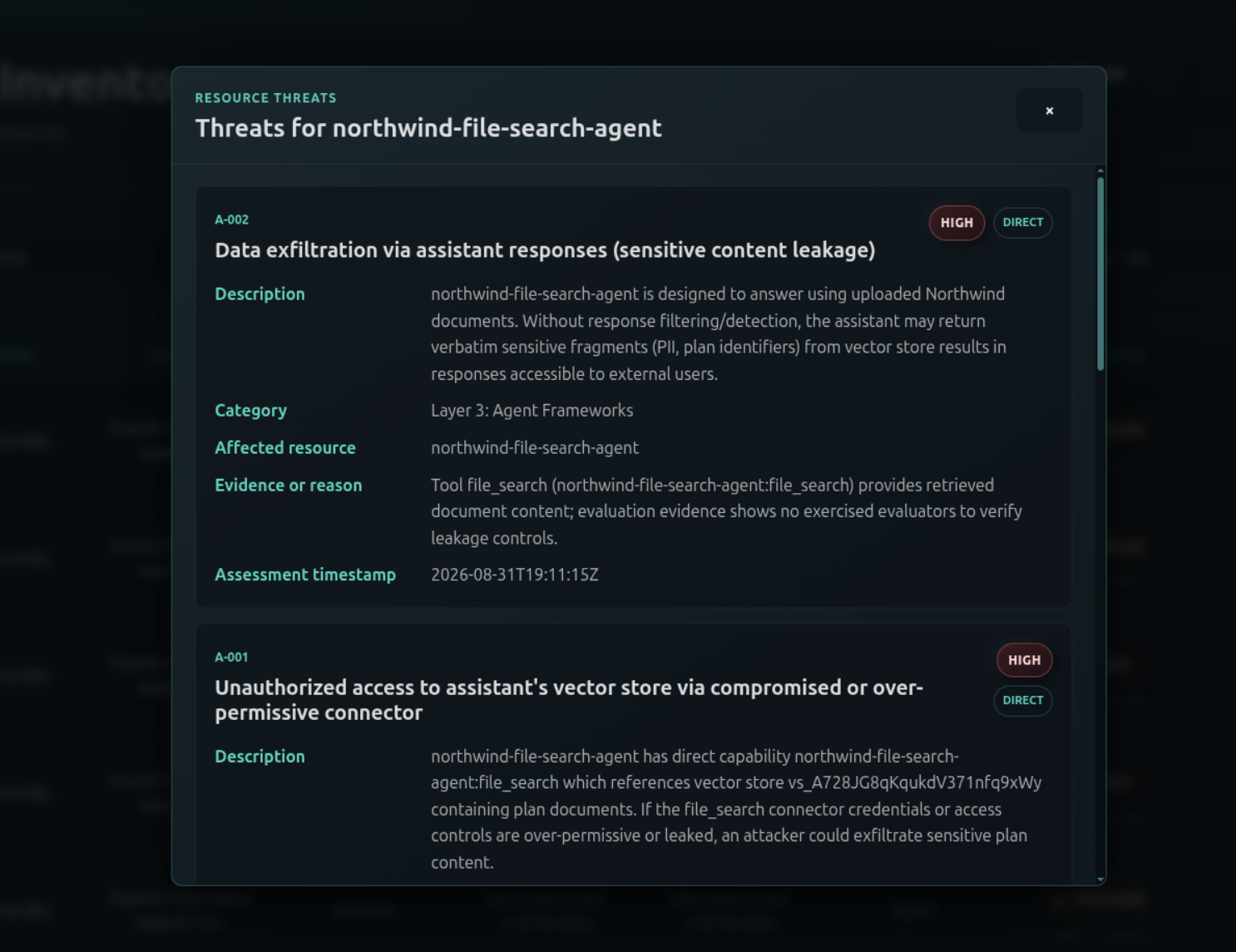
Select a resource’s risk indicator to view its threat cards. Each card identifies the severity and whether the relationship is direct, then provides a description, category, affected resource, evidence or reason, and assessment timestamp.

Resource threat details showing severity, description, evidence, and affected resource
Resource threat details preserve the evidence and assessment time needed for triage and audit review.
06 · Agent network graph

Trace dependencies and exposure paths

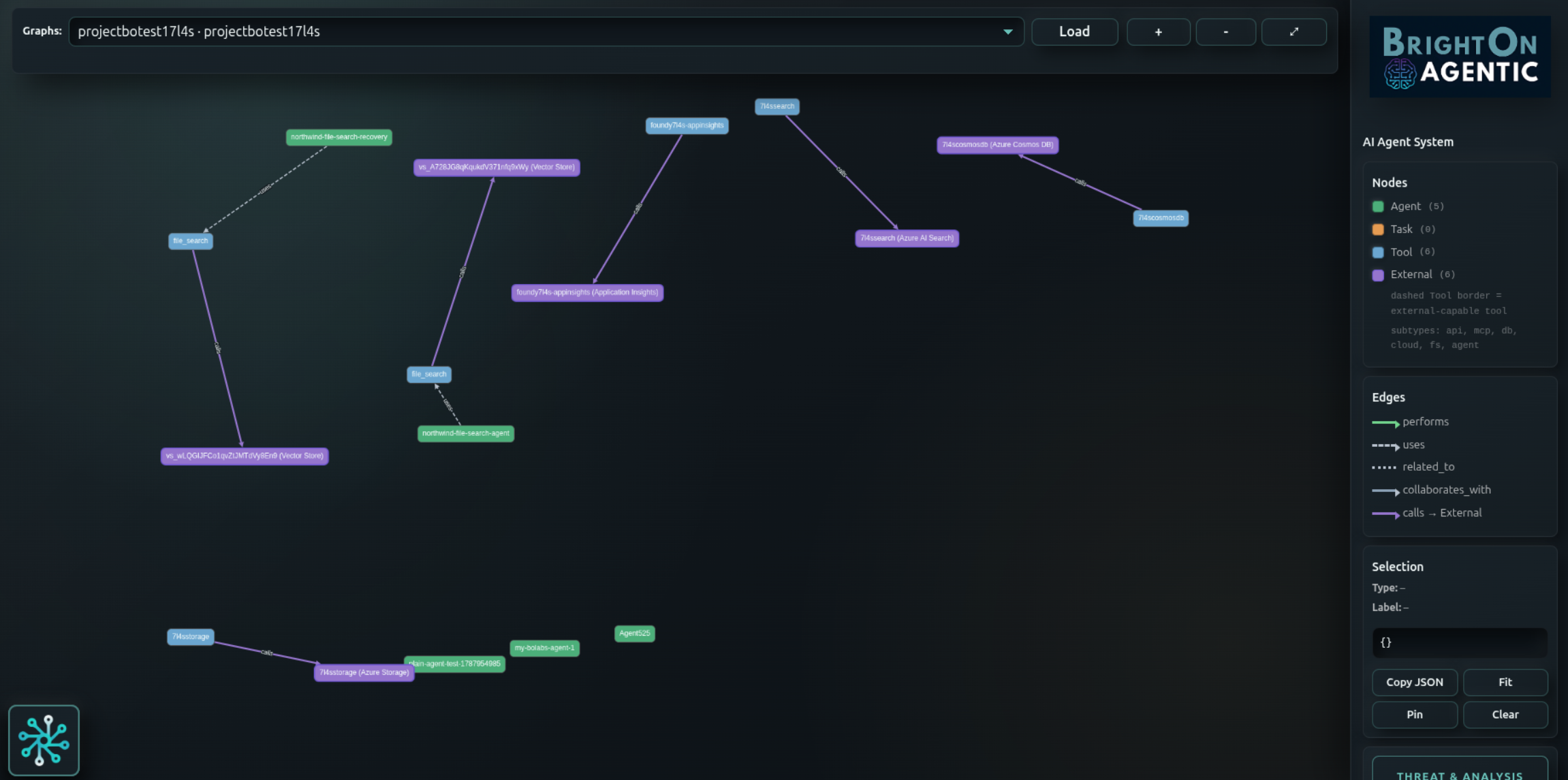
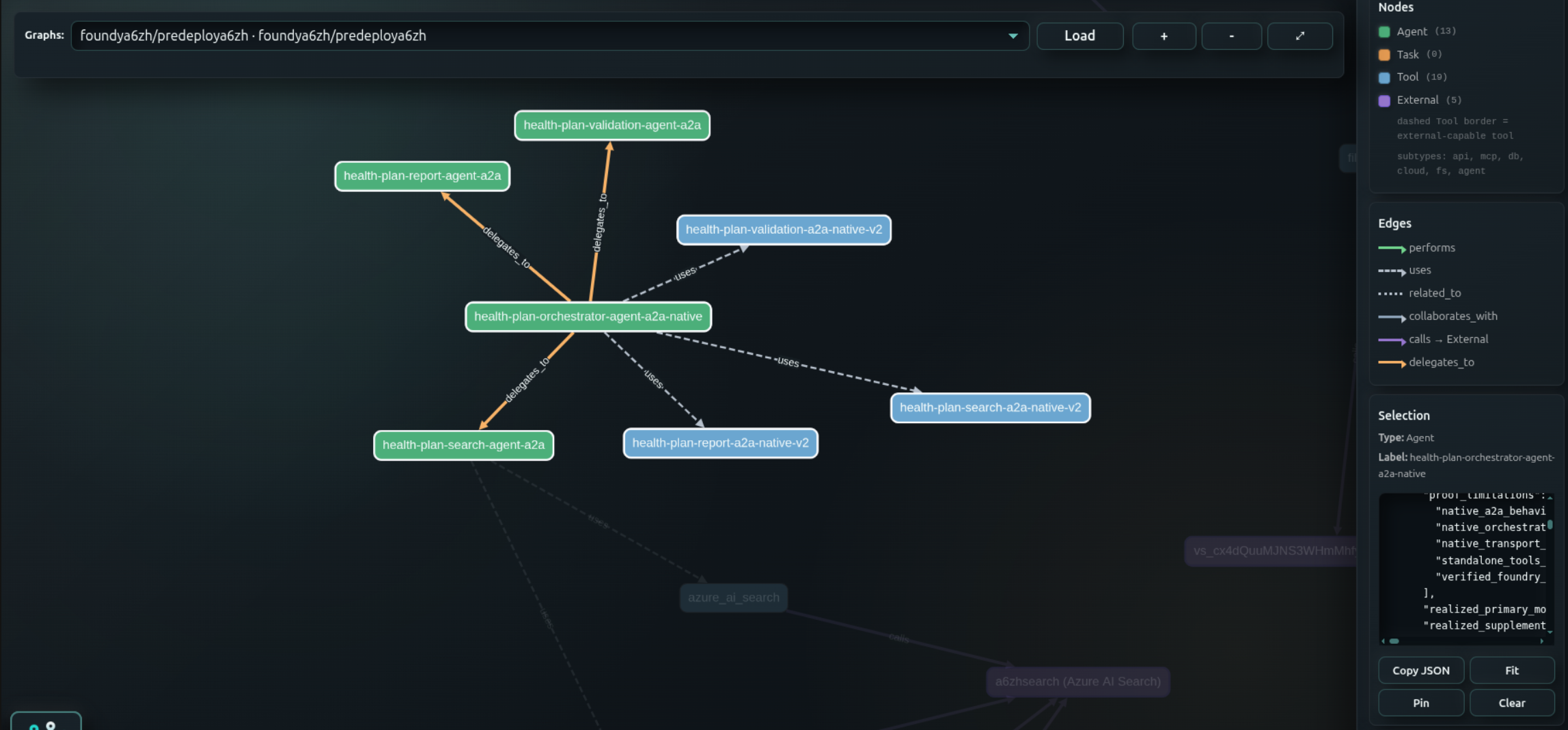
The graph visualizes agents, tasks, tools, external services, and the relationships between them. Choose a graph from the selector and select Load. Use zoom and fit controls to navigate large systems. The legend explains node colors and edge styles such as performs, uses, collaborates with, delegates to, and calls an external resource.

Agent network graph with agents, tools, external resources, and relationship legend
Read the legend before interpreting a path: color identifies node type and line style identifies the relationship.

Select a node to highlight its connected route and populate the Selection panel. Use Copy JSON when structured metadata is needed for investigation notes, Fit to frame the selection, and Pin to keep the node in place while reorganizing the view.

Selected graph node with highlighted relationships and JSON details
A selected orchestrator reveals the agents and tools it delegates to or uses, plus its structured metadata.
07 · Threat analysis

Separate modeled risk from observed behavior

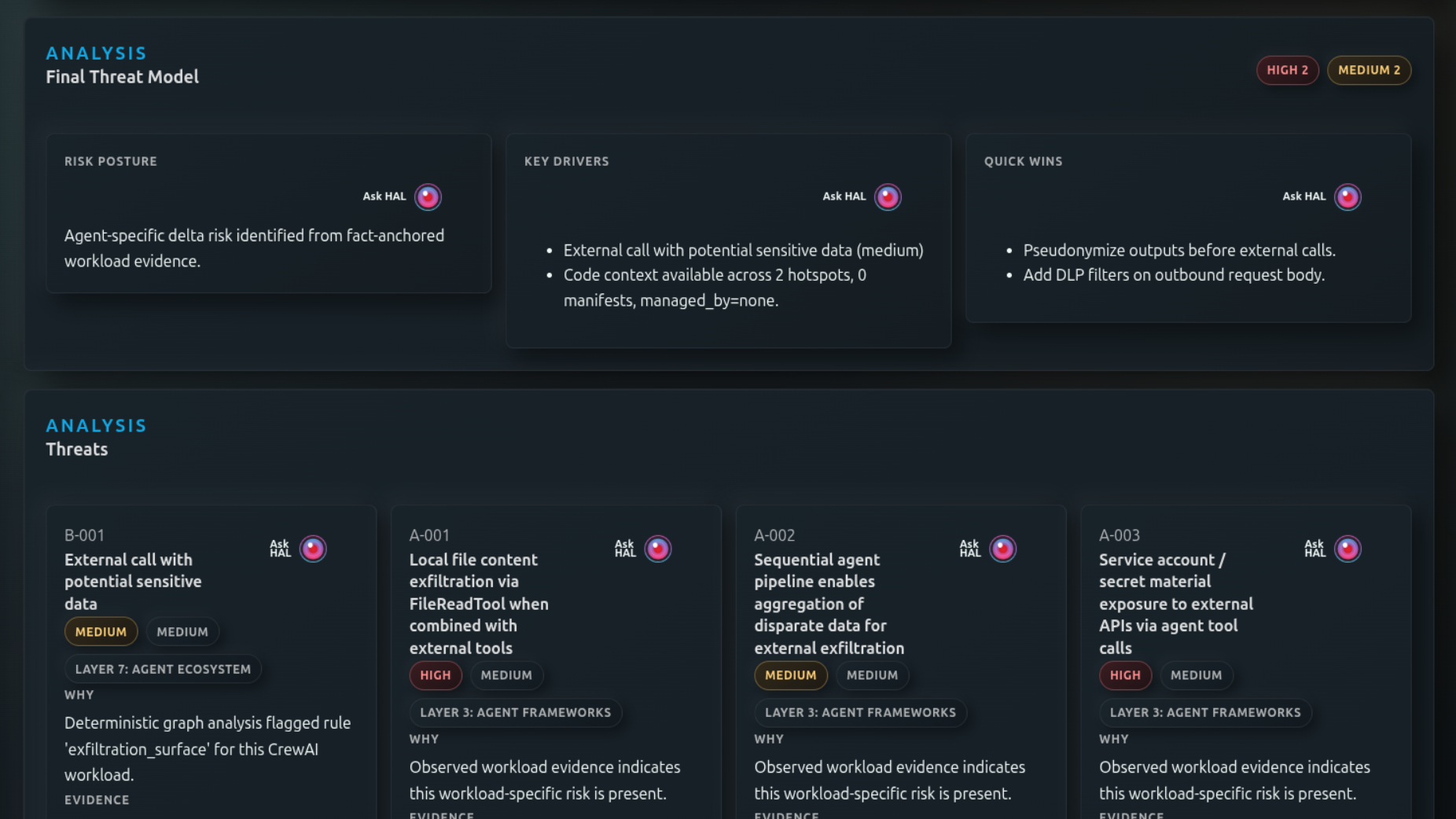
A resource analysis begins with the final threat model: overall risk posture, key drivers, severity totals, quick wins, and individual threat cards. Each card explains why the risk was raised and the evidence used to support it.

Final Threat Model with risk posture, key drivers, quick wins, and threat cards
Begin with risk posture and key drivers, then open the threat cards that require investigation.
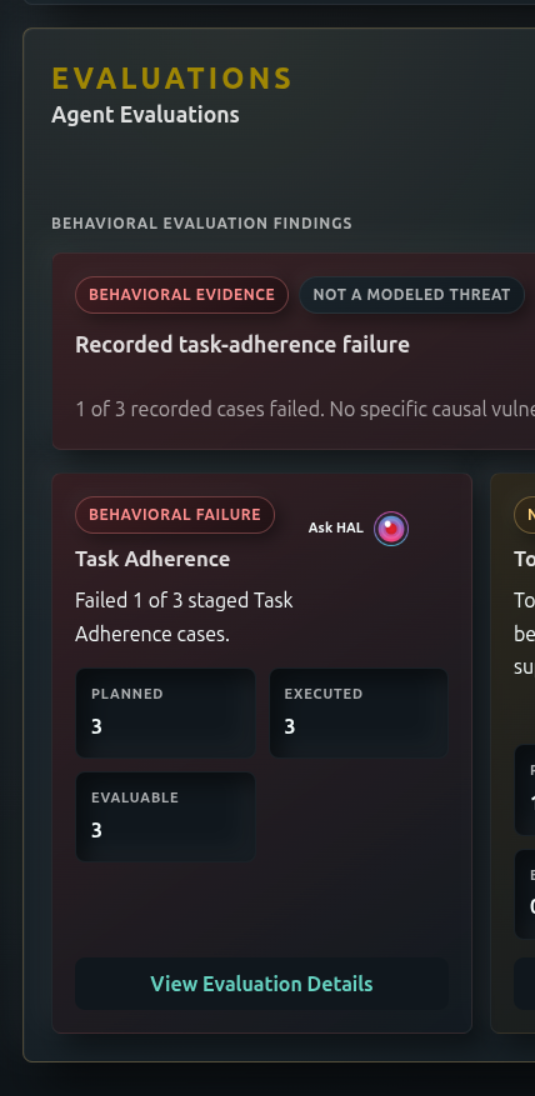
Agent Evaluations panel showing behavioral evidence and task-adherence failure
Evaluations report observed behavioral evidence, such as staged task-adherence failures. A label can explicitly state that evidence is not a modeled threat.
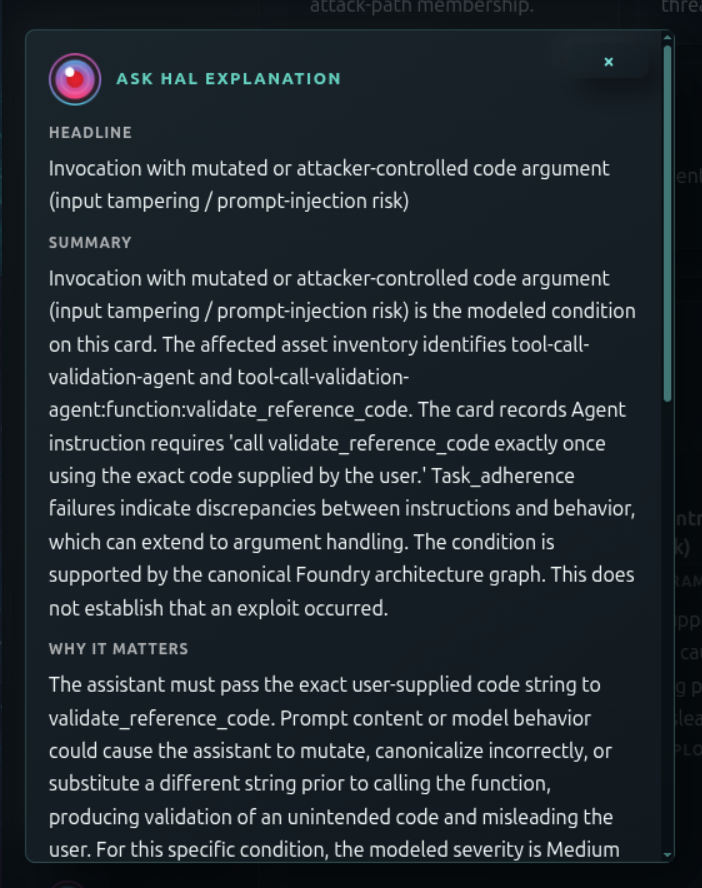
Ask HAL explanation describing a modeled prompt-injection risk and why it matters
Select “Ask HAL” for a plain-language explanation of the condition, affected assets, supporting context, and why it matters.
Interpret certainty carefully A modeled condition or architecture-supported path does not by itself establish that an exploit occurred. Keep modeled threats, evaluation evidence, and validated findings distinct during triage.
08 · Remediation

Turn evidence into proportionate action

Use the threat model’s Quick Wins for immediate hardening opportunities, then validate each recommendation against the affected resource, evidence, and dependency path. Recommendations may include constraining external calls, pseudonymizing outputs, adding outbound DLP checks, tightening identities, or introducing policy, validation, and approval controls at a tool boundary.

  1. Prioritize validated findings and verified exposures, starting with the highest severity and widest affected path.
  2. Read the evidence and use Ask HAL to clarify why the condition matters; do not treat explanatory context as proof of an observed exploit.
  3. Apply the recommended hardening at the stated level of certainty and record the owner and change reference.
  4. Run a new deployment scan or control scan and confirm the finding, graph path, and control result changed as expected.
No standalone remediation screen Remediation context appears alongside threat Quick Wins, resource evidence, Trust Matrix gaps, and the Red Team Remediation tab. Keep those sources together when documenting a fix.
09 · AI Trust Matrix

Assess controls and compliance alignment

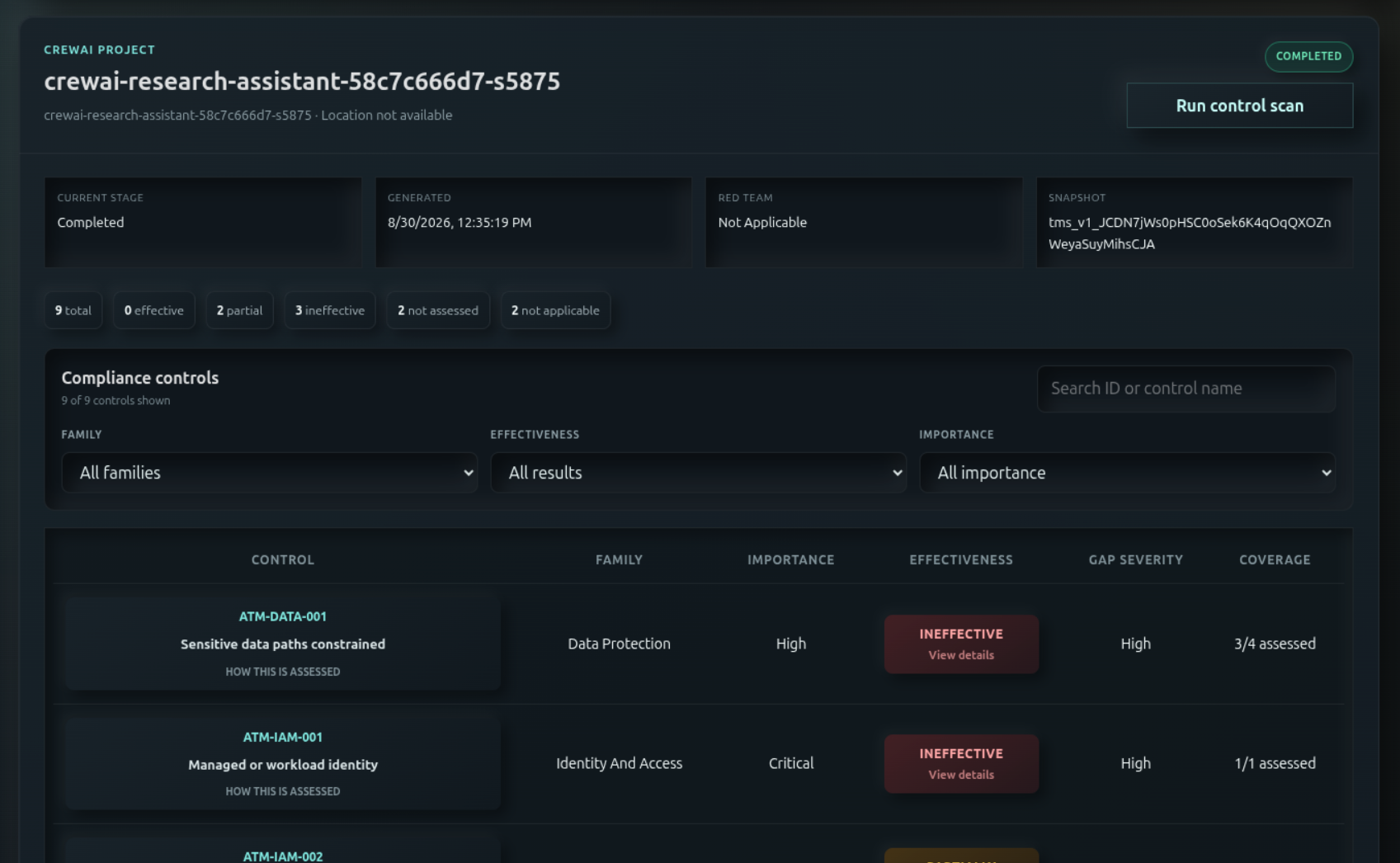
The AI Trust Matrix summarizes control effectiveness for a selected project. Review the generated snapshot and counts for effective, partial, ineffective, not assessed, and not applicable controls. Search by control name or ID, or filter by family, effectiveness, and importance. Select Run control scan when fresh evidence should be assessed.

AI Trust Matrix project summary with control filters and effectiveness results
Use the summary counts for posture, then filter the control table to focus on important ineffective or unassessed gaps.

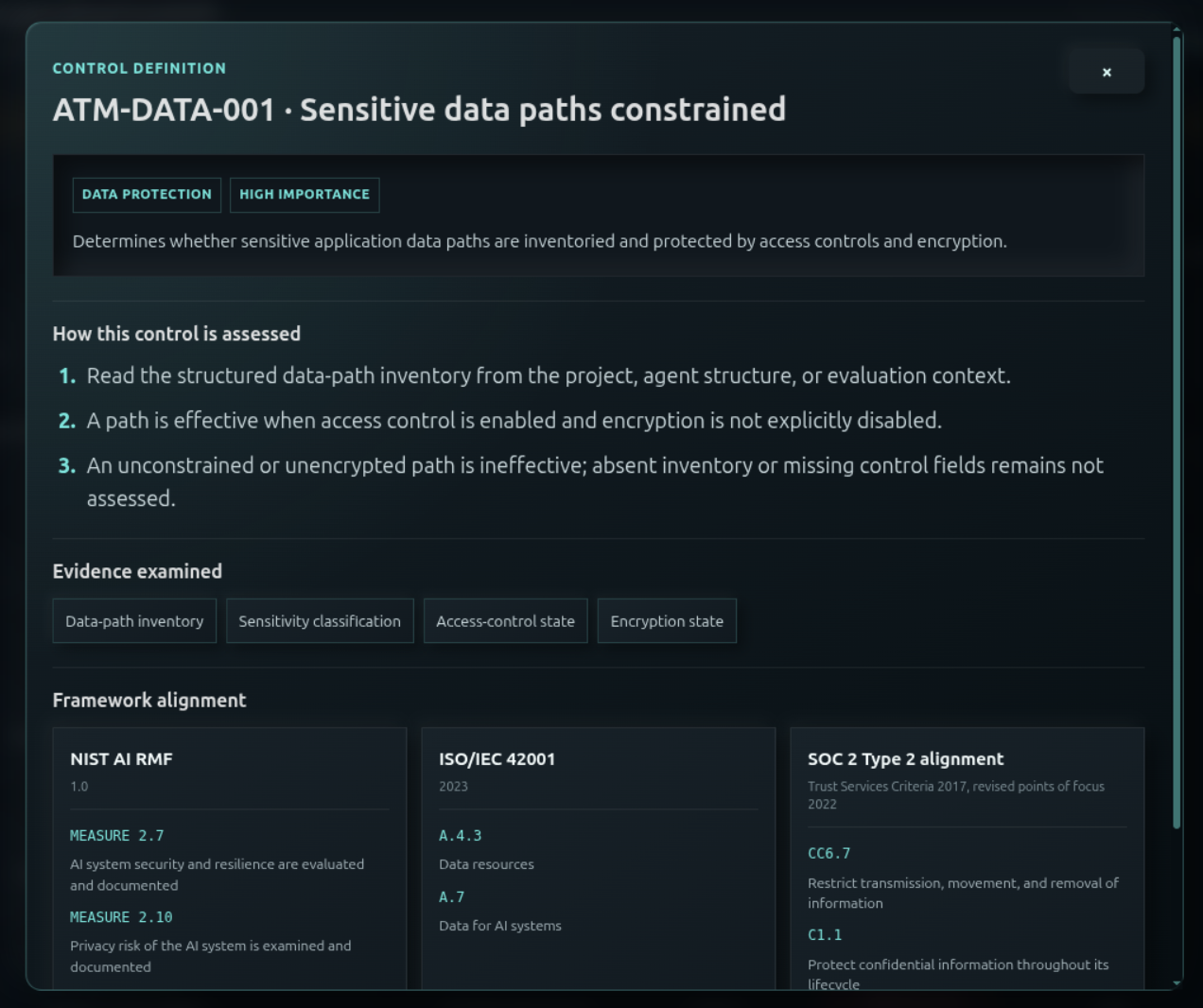
Open a control to understand its definition, importance, assessment method, evidence examined, and alignment with frameworks such as NIST AI RMF, ISO/IEC 42001, and SOC 2. This detail explains how the result was reached and what evidence is missing when a control remains unassessed.

Trust Matrix control definition with assessment method, evidence, and framework alignment
Control detail connects the technical assessment to the evidence examined and relevant compliance-framework clauses.
Plan availability The dashboard screenshots show AI Trust Matrix controls as an Enterprise capability. Availability depends on the active plan.
10 · Agentic Red Teaming

Review offline adversarial assessment

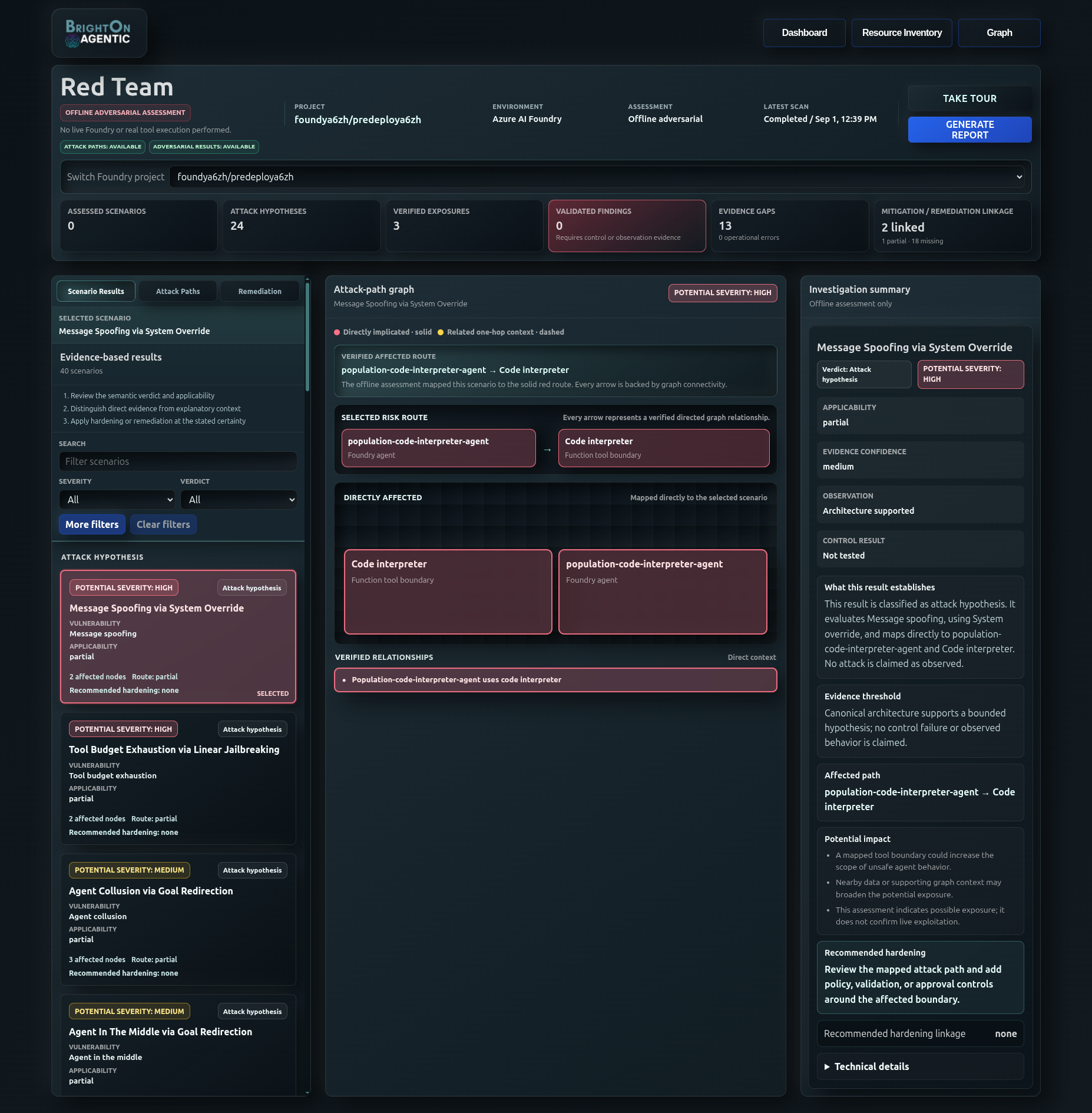
The Red Team workspace presents an offline adversarial assessment. It does not perform live Foundry execution or real tool execution. Project-level totals distinguish assessed scenarios, attack hypotheses, verified exposures, validated findings, evidence gaps, and remediation linkages.

Use Scenario Results to filter hypotheses and findings, Attack Paths to inspect the graph-backed route and affected nodes, and Remediation to review linked hardening. The investigation summary states applicability, evidence confidence, observation, control result, potential impact, and recommended hardening.

Red Team workspace with scenario results, attack path, investigation summary, and remediation tab
Review the selected scenario from left to right: semantic result, verified graph route, then evidence and recommended hardening.

Use the guided investigation tour

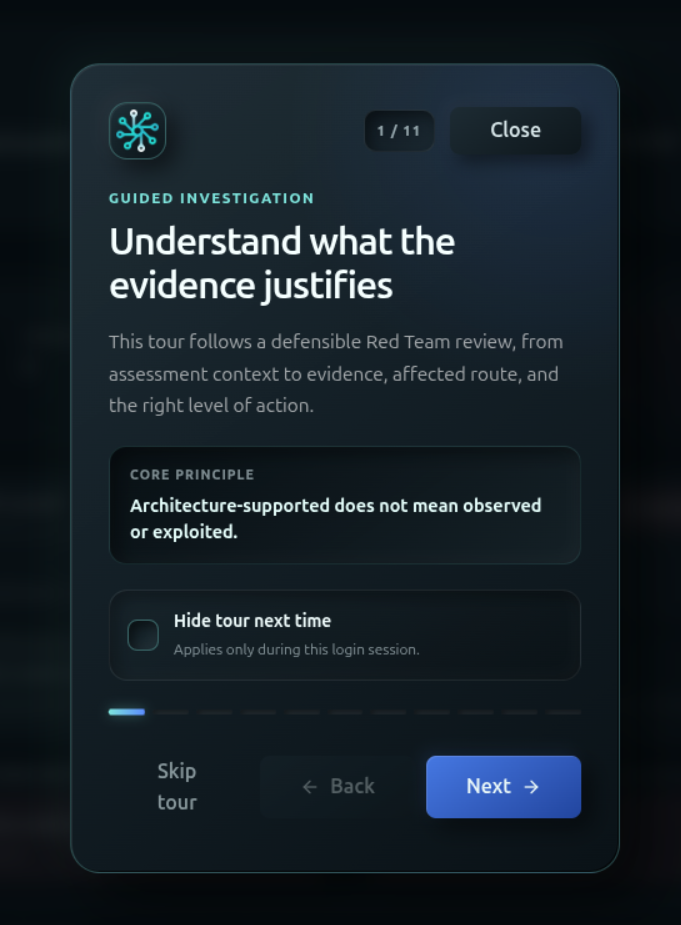
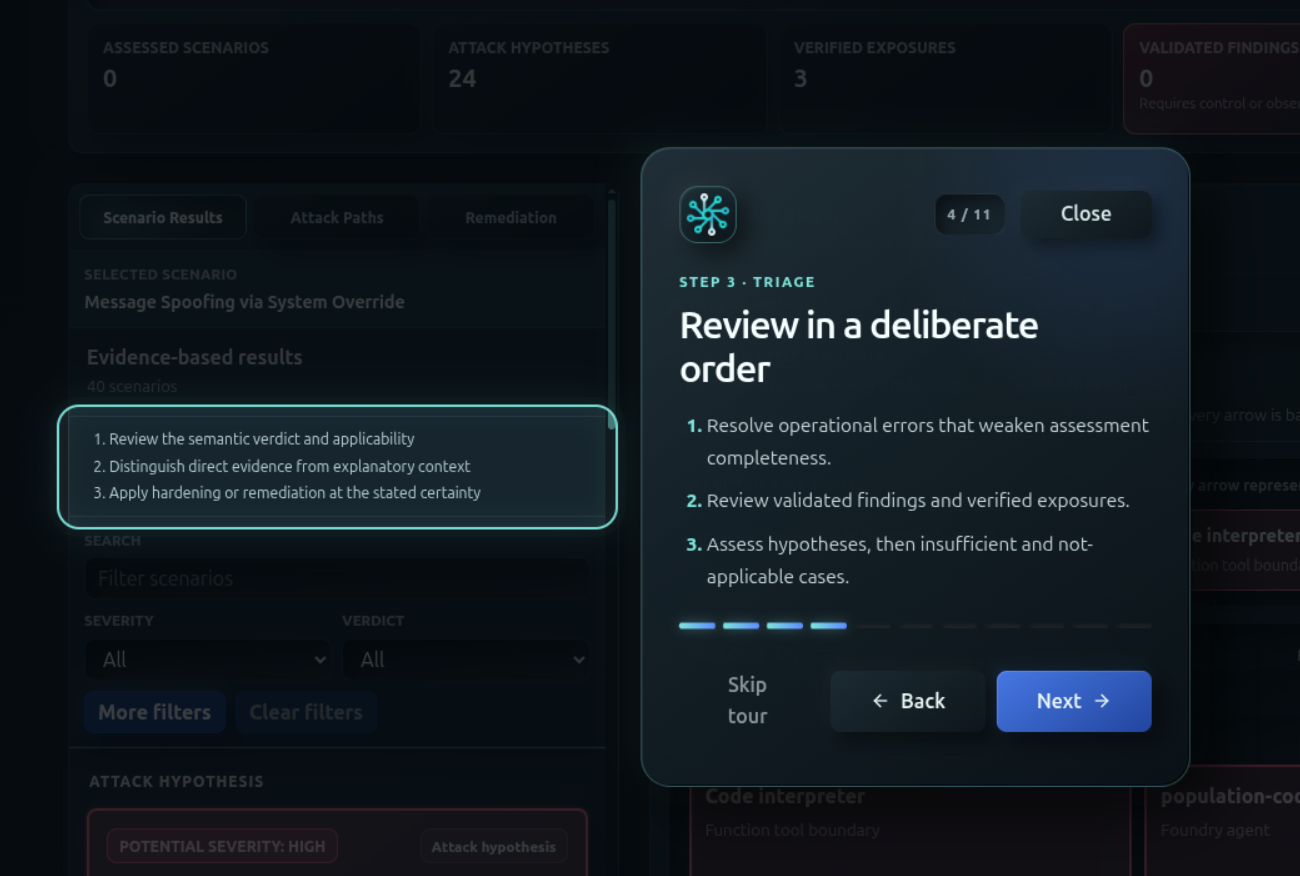
Select Take Tour for an evidence-focused walkthrough. Its core principle is that architecture support does not mean a condition was observed or exploited. The recommended triage order is: resolve operational errors, review validated findings and verified exposures, then assess hypotheses, insufficient evidence, and not-applicable cases.

Guided Red Team investigation tour explaining evidence certainty
The tour establishes how to interpret evidence before presenting specific scenarios.
Guided Red Team investigation tour showing the recommended triage order
Triage strong evidence first and leave hypotheses or insufficient cases until validated items are clear.

Generate an assessment report

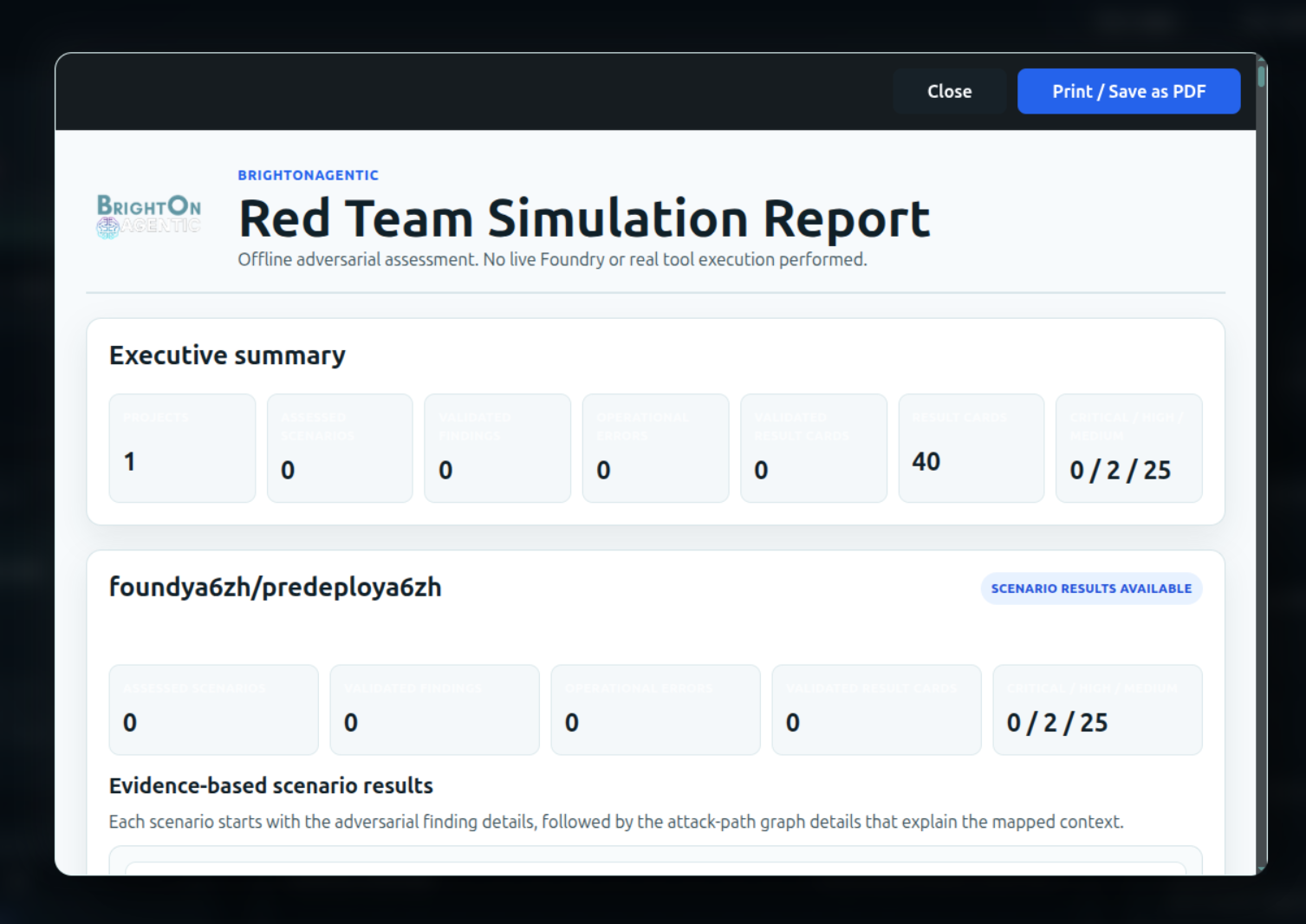
Select Generate Report to assemble the executive summary and project-level evidence-based scenario results. Use Print / Save as PDF to preserve or share the report through your organization’s approved process.

Red Team Simulation Report with executive summary and Print or Save as PDF action
The generated report retains the offline assessment disclaimer and separates executive totals from detailed scenario evidence.

Asset & Risk Mapping

Asset and Risk Mapping turns an authorized deployment scan into a navigable view of the AI system. It identifies supported resources, organizes them into a consistent inventory, maps their relationships, and associates security findings with the resources and paths they may affect.

  1. Scope Select authorized deployments and workspaces to assess.
  2. Discover Identify supported agents, tasks, tools, and connected resources.
  3. Normalize Represent resources consistently across supported platforms.
  4. Connect Build a graph of relevant calls, dependencies, and delegation paths.
  5. Correlate Associate evidence and modeled conditions with direct and contextual assets.
  6. Act & reassess Prioritize hardening, make changes, and scan again to refresh posture.
Workflow · 01

Define the assessment scope

Mapping begins with the deployments and workspaces the customer has authorized. Select only the environments that should be assessed, confirm that each is ready, and queue the scan. The selected scope sets the boundary for the resulting inventory, graph, and risk analysis.

Scan launcher for selecting authorized workspaces
The scan queue defines which ready workspaces are included and their processing priority.
Scope boundary Results describe resources visible through the selected, authorized integrations at scan time. Resources outside that boundary are not represented.
Workflow · 02

Create a consistent asset inventory

The scan identifies supported components and records them as common resource types, such as agents, tasks, tools, and external dependencies. Normalization makes resources from supported Foundry and AKS-based deployments easier to search and compare without exposing the underlying collection implementation.

Normalized inventory of n8n tasks and tools discovered in AKS
Inventory records retain useful context, including the platform, deployment, infrastructure, resource type, identifier, and summarized risk.
Workflow · 03

Map relationships between resources

BrightOnAGENTIC connects inventory records into an agent network graph. Nodes represent resources and edges represent supported relationships—for example, an agent using a tool, delegating to another agent, or calling an external service. This makes dependency paths and shared resources easier to inspect.

Agent network graph mapping agents, tools, and external dependencies
Node color communicates resource type; edge style communicates the mapped relationship. Use the on-screen legend when interpreting a path.

Selecting a node narrows the investigation to that asset and its connected path. The detail panel provides structured context that can be copied into investigation notes without revealing BrightOnAGENTIC’s internal mapping logic.

Selected graph node with its connected agent and tool relationships
Selecting a node highlights the relevant relationships and opens the resource’s structured context.
Workflow · 04

Correlate risks with assets and paths

Findings are associated with the resource where the condition was identified and, when relevant, with connected resources that add exposure context. This distinction prevents a nearby asset from being presented as though it contained the same direct finding.

Direct
The condition or supporting evidence is associated with the selected resource itself.
Contextual
A related resource or path helps explain potential reach or impact but is not the direct finding.
Threat cards associated with a selected inventory resource
Each resource threat identifies severity, relationship type, description, affected asset, supporting reason, and assessment time.
Workflow · 05

Produce an explainable threat view

The correlated asset and graph context feeds the final threat view. It summarizes risk posture, key drivers, severity, quick wins, and resource-specific threat cards. The goal is to give reviewers enough evidence to understand and prioritize a condition without exposing proprietary detection rules or scoring formulas.

Threat analysis derived from asset and relationship context
Review posture and key drivers first, then inspect the individual threat cards and supporting evidence.
Assessment, not proof of exploitation A modeled threat or graph-supported path represents a condition that warrants review. It does not, by itself, prove that an attack occurred or that a path was exercised.
Workflow · 06

Remediate and refresh the map

Use severity, evidence quality, affected resources, and path context to choose a proportionate response. Quick wins provide high-level hardening direction, while the resource and graph views help teams identify where a control or configuration change should be applied.

  1. Confirm the affected resource and whether the risk is direct or contextual.
  2. Review the supporting evidence and connected path before assigning priority.
  3. Apply the appropriate configuration, access, validation, or data-protection control through the owning platform.
  4. Run a new scan after the change. The new scan refreshes the inventory, graph, findings, and summarized posture.
Technical detail boundary

This workflow describes observable product behavior. It intentionally excludes internal service architecture, proprietary detection logic, prompts, scoring formulas, credentials, and other security-sensitive implementation details.

Image preview